
Blog
Revit System Requirements: What Your Workstation Needs

Revit System Requirements: What Your Workstation Actually Needs in 2026
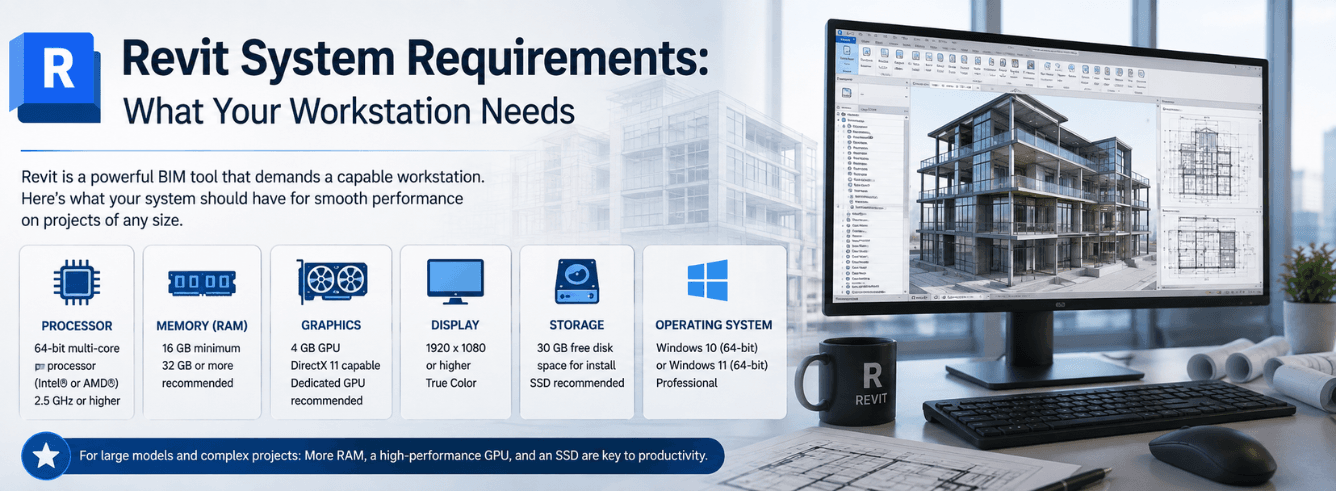
Understanding the official Revit system requirements is one thing; knowing what you need to actually get work done without constant crashes and coffee-break load times is another. Autodesk publishes a baseline, but real-world BIM workflows demand far more.
- Ignore the 16 GB minimum — 32 GB is the real floor for Revit; 64 GB is standard for medium-to-large models.
- Revit cares about single-core clock speed far more than core count for nearly all modelling tasks.
- A “gaming” GPU works, but an NVIDIA RTX A-series or AMD Radeon Pro card gets you certified driver stability.
- Windows 11 is the current official requirement for Revit 2026; Windows 10 is no longer supported for this release.
- Our recommended builds save you from buying twice — we pair real licence savings with smart hardware advice.
Official specs vs. real-world Revit system requirements
Every year, Autodesk updates a support page with a dense table. It is technically correct but practically misleading. The entry-level numbers assume a blank file with a few walls and no linked models — not the multi-gigabyte hospital or airport project sitting on your server.
We looked at the official Revit 2026 system requirements and translated them into what three common users actually need. The gap is significant.
| Component | Autodesk Official “Entry” | Zoftis Real-World Minimum |
|---|---|---|
| CPU | 2.5 GHz, single- or multi-core | 3.5 GHz+ base clock, 6+ cores |
| RAM | 16 GB | 32 GB (64 GB for teams) |
| GPU | DirectX 11 capable, 4 GB VRAM | 8 GB VRAM, NVIDIA RTX A2000 or better |
| Storage | 30 GB free disk space | 1 TB NVMe SSD, project files on fast local or 10GbE network storage |
| OS | Windows 11 (version 22H2 or later) | Windows 11 Pro with all updates |
The official table has no row for patience. If you build to the minimum, you will spend a significant part of your day watching a spinning wheel while Revit regenerates views.
CPU: Why clock speed is everything for Revit
When people search for Revit CPU requirements, the most common mistake is assuming more cores equal more speed. That is true for rendering engines like V-Ray or for video editors, but Revit’s core modelling engine is still fundamentally single-threaded.
Tasks like wall joins, floor sketch editing, dimension regeneration, and section cuts all run on one primary thread. A 24-core Xeon clocked at 2.2 GHz will feel sluggish in day-to-day modelling compared to a consumer Core i7 or i9 running at 5.4 GHz. The difference is not subtle — it is the difference between fluid orbit/pan and a stuttering viewport.
What you need
- Intel: Core i7-14700K or i9-14900K. Avoid low-clocked Xeon-W for general Revit work unless your primary job is CPU rendering.
- AMD: Ryzen 7 7800X3D or Ryzen 9 7950X. The 3D V-Cache models show a measurable uplift in Revit model manipulation.
- Do not spec a CPU with a base clock under 3.0 GHz. Turbo boost numbers are for short bursts; the base clock is what matters during sustained work.
If your workflow includes rendering inside Revit (not Enscape or Twinmotion via GPU), only then does core count become important. For pure modelling, prioritise the highest single-core boost you can afford.
RAM: The single biggest performance lever
No single hardware upgrade improves Revit performance as much as going from insufficient RAM to adequate RAM. Revit loads the entire model — and every linked model — into system memory. If that footprint exceeds your physical RAM, Windows starts paging to disk, and your session can degrade to unusable within minutes.
Real-world RAM requirements by project type
- 16 GB: Viable only for learning, single-family residential, or very early conceptual studies. Workspaces with two linked models will already push past this limit.
- 32 GB: The functional floor for a professional workstation. Handles a mid-rise commercial project with 2–3 linked consultant models (structure, MEP) comfortably.
- 64 GB: Standard for architecture firms. Allows a large multi-building campus, point clouds, and multiple linked Revit files open simultaneously without compression.
- 128 GB: Required for infrastructure-scale models, federated BIM coordination, or if you regularly open a full city-block model in a single session.
GPU and VRAM: Certified hardware vs. gaming cards
Revit is not a GPU-renderer like Lumion. It uses the graphics card for viewport drawing, orbit/pan/zoom smoothness, and visual styles like Realistic and Ray Trace. The video card market splits into professional (NVIDIA RTX A-series, AMD Radeon Pro) and consumer (GeForce RTX, Radeon RX) lines, and the Revit computer requirements question often comes down to which camp to buy.
Can you use a gaming GPU for Revit?
Yes — a high-end GeForce RTX 4070 or 4080 will drive Revit beautifully and often delivers more raw frame-buffer performance per dollar than the equivalent professional card. Many small firms run RTX cards without issues. However, there is a catch: Autodesk only tests and certifies professional drivers. If you encounter a display corruption bug with a GeForce card, support’s first instruction will be to switch to the latest NVIDIA Studio Driver (better than Game Ready for this purpose) or to a certified card.
VRAM matters more than raw clock
Large model performance in Revit is directly tied to VRAM. With multiple views open on twin 4K monitors, you can easily saturate 6 GB. We recommend 8 GB as the practical floor; 12 GB or more is preferred if you render in-canvas or use Enscape/V-Ray GPU alongside Revit.
| GPU Tier | Examples | Best For |
|---|---|---|
| Certified Entry | NVIDIA RTX A2000 12GB, AMD Radeon Pro W6600 | Solo practitioners, small models, guaranteed driver stability. |
| Certified Mid-Range | NVIDIA RTX A4000 16GB, AMD Radeon Pro W6800 | Medium firms, twin 4K monitors, consistent Realistic-view work. |
| Consumer Alternative | GeForce RTX 4070 Ti SUPER 16GB | High performance/value; pair with NVIDIA Studio Driver. |
| Certified High-End | NVIDIA RTX A6000 48GB | Massive federated models, VR workflows, GPU rendering. |
Storage: SSD is mandatory, but project location matters too
Autodesk’s official note says “30 GB free disk space.” This refers only to the installation footprint, not project data. Revit reads and writes constantly — temporary journal files, local copies, and central model synchronisation all hit storage hard.
NVMe over SATA, every time
A modern NVMe SSD (PCIe Gen 4 or 5) delivers 5,000–10,000 MB/s reads. A SATA SSD caps around 550 MB/s. When Revit opens a 1.2 GB central model, that difference is 10x. There is no reason left to use SATA as a primary drive. Install Windows, Revit, and your active project folder on the NVMe.
Network storage and worksharing
If your central models live on a NAS or server, the network pipe is your performance ceiling. A single gigabit connection (125 MB/s) is slower than a spinning hard drive and becomes a bottleneck for models over 500 MB. Firms doing regular worksharing should run 2.5 GbE or 10 GbE to the Revit server.
Operating system, connectivity, and the Windows 11 shift
Revit 2026 officially requires a 64-bit version of Windows 11 (version 22H2 or later). This marks a clean break: Windows 10 is no longer listed as a supported operating system for this release. If you are still holding onto a Windows 10 workstation for compatibility with older software, you will need to plan a migration before deploying Revit 2026 across your office.
Revit runs exclusively on Windows. There is no macOS version, nor a functional path via Parallels or Crossover that Autodesk supports. Architects on Mac hardware must run Revit through Boot Camp (on Intel Macs) or buy a dedicated Windows workstation — an increasingly common choice given Apple Silicon’s inability to dual-boot Windows.
Three real-world workstation profiles
Rather than just listing best computer for Revit components in a vacuum, here are three complete profiles matched to how people actually use the software. These are hardware recommendations only — we handle the licence savings that free up budget for the specs you need.
| Component | Freelancer / Small Firm | Multi-Discipline Team | Specialist / Dynamo User |
|---|---|---|---|
| CPU | Intel Core i7-14700K | Intel Core i9-14900K | AMD Ryzen 9 7950X |
| RAM | 32 GB DDR5 | 64 GB DDR5 | 64–128 GB DDR5 |
| GPU | RTX A2000 12GB or RTX 4070 | RTX A4000 16GB | RTX A6000 48GB |
| Storage | 1 TB NVMe Gen4 | 1 TB NVMe Gen4 + 2 TB project SSD | 2 TB NVMe Gen4 + 10GbE NAS link |
| OS | Windows 11 Pro (all builds) | ||
Your hardware budget will stretch further when you save on the Revit licence itself. Our genuine single-user subscriptions start at $79 for a 1-year term — a 51% saving against Autodesk’s direct list price that you can redirect straight into a RAM or GPU upgrade.
Why building to the minimum spec is a false economy
The official Revit minimum requirements suggest you can run Revit on a machine that would have been mid-range five years ago. You technically can open the application. You cannot comfortably work in it.
A firm that buys a $1,200 office PC built to the minimum spec and pays an architect $80,000 a year has made a poor calculation. If that architect loses just 30 minutes a day to model-loading waits, view regeneration lag, and the occasional out-of-memory crash, the firm loses roughly $5,000 a year in billable time per seat. The “saving” on the workstation vanishes within three months. Spending the extra $800–1,200 upfront on RAM and a faster CPU is not a cost — it is the cheapest productivity investment you can make.
Get a genuine Revit 2026 licence — save 51% on list price
1-year or 3-year term, version years 2024–2027. Activated on your own Autodesk account, delivered within 1–12 hours. Backed by a 30-day money-back guarantee. From $79 (reg $160).
View Revit Licences →Also available: Revit Commercial License — full commercial use rights, from $1,499.
Frequently asked questions
What are the absolute minimum Revit system requirements to open the software?
Autodesk states a 2.5 GHz processor, 16 GB RAM, a DirectX 11-capable GPU with 4 GB VRAM, 30 GB free disk space, and Windows 11 (22H2+). These specs will allow Revit to launch and handle a very small, unlinked project — nothing more. For any professional work, exceed these by a wide margin.
Do I need a professional GPU or will a gaming card work?
A high-end consumer card (NVIDIA GeForce RTX 4070 or better) works well and is often better value. Use the NVIDIA Studio Driver, not the Game Ready driver. If your firm requires certified driver support for auditing or ISO compliance, choose an NVIDIA RTX A-series or AMD Radeon Pro card.
Is Revit single-core or multi-core for modelling?
Revit’s core modelling engine — the tasks you do 90% of the time — is primarily single-threaded and benefits from high clock speeds. Multi-core processing helps with rendering, file export, and some analysis tasks, but does not speed up wall drawing, dimensioning, or view navigation.
Can I run Revit on Windows 10?
Revit 2026 officially requires Windows 11. While Revit 2025 and earlier versions support Windows 10, Autodesk has removed Windows 10 from the Revit 2026 spec sheet. We strongly recommend upgrading your OS before deploying the latest version.
Is 32 GB RAM enough for Revit in an architecture firm?
32 GB is adequate for small-to-medium projects with a few linked consultant models. If your firm works on large healthcare, infrastructure, or multi-building campus projects — or if you regularly load point clouds — 64 GB is a safer standard.