
Blog
How to Transfer Layouts to Another Drawing in AutoCAD

How to Transfer Layouts to Another Drawing in AutoCAD
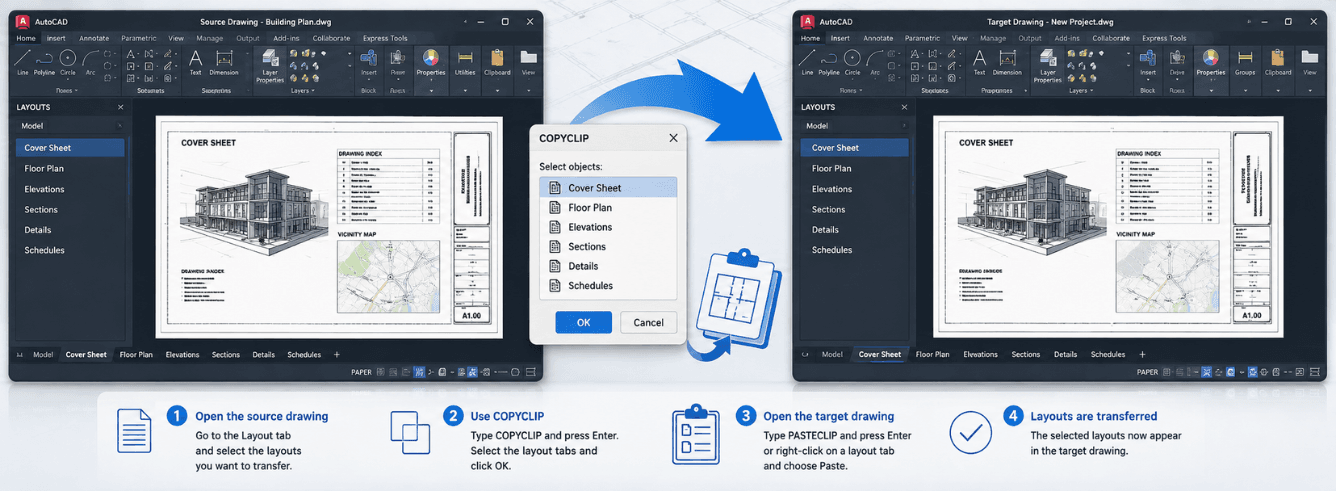
Knowing how to transfer layouts to another drawing in AutoCAD is one of the fastest ways to stop recreating the same sheets from scratch.
- The right-click “Move or Copy” method works for duplicating layouts within the same drawing — perfect for multi-sheet projects.
- Use “From Template” or Design Center to copy layouts between different DWG files without opening the source drawing.
- Most settings transfer automatically — viewports, page setups, title blocks, and annotation scales all carry over.
- Be careful with Model Documentation views — they can’t be moved between sheets like regular viewports can.
Which method should you use?
AutoCAD gives you three reliable ways to transfer layouts. Each fits a different workflow — here’s how to choose the right one before you start.
| Scenario | Best method | Why |
|---|---|---|
| You need a second sheet in the same drawing | Right-click “Move or Copy” | Fastest, one-click duplication |
| You want layouts from an older project in your current file | “From Template” | Browse any DWG or DWT directly |
| You regularly pull styles and settings from a standards file | Design Center (DC) | Drag-and-drop plus blocks, layers, and more |
Can’t remember which drawing has the layout you need? Design Center lets you preview layouts before importing them — no guesswork.
Method 1: Right-click “Move or Copy” (within the same drawing)
This is the most straightforward way to duplicate a layout when you need multiple sheets with the same setup — same title block, same viewports, same plot settings.
Step-by-step
- Right-click the layout tab you want to duplicate.
- Select “Move or Copy” from the shortcut menu [citation:2].
- In the dialog box, check the box labeled “Create a copy” [citation:2].
- Choose where to place the copy — pick a position in the list or select “Move to end” [citation:2].
- Click OK.
AutoCAD creates a duplicate layout with the same name followed by “(2)” — for example, “Layout1 (2)” [citation:2]. Every object on that layout, including viewports and title blocks, copies over exactly [citation:7].
Shortcut: Hold Ctrl while dragging a layout tab to a new position on the tab bar. This creates a copy in one motion [citation:7].
Method 2: “From Template” (between drawings)
When you need to bring a layout from another DWG file into your current drawing, “From Template” is the cleanest approach. It works with both .dwg and .dwt files [citation:1][citation:6].
Step-by-step
- In the destination drawing (where you want the layout to go), right-click any existing layout tab.
- Select “From Template” [citation:1][citation:6].
- Change the file type to “Drawing (*.dwg)” if your source is a DWG, or leave it on “Template (*.dwt)” [citation:1][citation:6].
- Browse to the source file that contains the layout you want to copy.
- In the Insert Layouts dialog, select one or more layouts — use Ctrl+click for multiple [citation:1].
- Click OK.
The selected layouts appear in your current drawing, complete with all their viewports, page setups, and annotations [citation:1][citation:6].
Watch out: This method copies the layout’s paper space objects — but it doesn’t automatically copy model space geometry. If your viewport references objects that don’t exist in the destination drawing, you’ll need to copy those separately [citation:15].
Method 3: Design Center (between drawings)
Design Center is AutoCAD’s all-in-one content manager. It lets you copy not just layouts, but also blocks, layers, dimension styles, and more from one drawing to another [citation:8].
Step-by-step
- Open both the source and destination drawings in AutoCAD.
- In the destination drawing, type DC and press Enter to open Design Center [citation:1][citation:3].
- In the Design Center palette, click the “Open Drawings” tab [citation:1][citation:3].
- Expand the source drawing’s tree, then expand “Layouts” [citation:1].
- Select the layouts you want — use Ctrl+click for multiple.
- Right-click and choose “Add Layout(s)” [citation:1][citation:3].
The layouts are imported into your destination drawing instantly [citation:1].
Design Center can also be used to copy model space objects alongside layouts — but only if you drag from the source drawing’s “Blocks” section [citation:15].
What transfers — and what doesn’t
When you transfer a layout, most of its settings come along for the ride. But some things don’t move automatically — here’s what to expect.
Transfers automatically
- Viewports — every viewport’s position, scale, and layer visibility settings carry over [citation:1][citation:15].
- Page setups — plot settings like paper size, plotter, and plot area transfer with the layout [citation:5].
- Title blocks and annotations — all paper space objects appear exactly as they were in the source drawing [citation:15].
- Named layouts — the layout name and tab order are preserved [citation:2].
May need extra steps
- Model space objects — if your viewport references objects that don’t exist in the destination, you’ll need to copy or xref them separately [citation:15].
- Custom coordinate systems (UCS) — Design Center doesn’t import UCS settings by default, but third-party tools like “Steal” can handle them [citation:8].
- Layer states — use the Layer States Manager (LAYERSTATE) to export and import these separately [citation:3].
Critical limitation: Model Documentation views (VIEWBASE) cannot be copied and moved between sheets using these methods. If you’re working with these views, consider replacing them with regular viewports for better portability [citation:11].
A note on Sheet Set Manager
If your project uses Sheet Set Manager, transferring layouts manually can cause issues. Sheet Set Manager tracks sheets by their file paths and layout names — copying a layout into a new drawing can break that link [citation:7].
For Sheet Set Manager workflows, the recommended approach is to add the layout to the sheet set directly, rather than copying it between drawings. This keeps all your sheets aligned with the project structure.
Pro tips for transferring layouts
- Save a template drawing — keep a DWG file with your standard title blocks, viewport layouts, and page setups. Use “From Template” whenever you start a new project [citation:6].
- Rename before you copy — it’s easier to rename a layout before duplicating it than to sort through “Layout1 (2) (3)” later.
- Use Ctrl+drag for speed — within the same drawing, Ctrl+drag a layout tab to duplicate it instantly [citation:7].
- Preview with Design Center — you can see what a layout looks like in Design Center before importing it, which saves time if you’re unsure which file has the right setup.
- For mass transfers — if you need to copy many layouts from one drawing to another, Design Center lets you select multiple at once and import them all in one go [citation:15].
Ready to put these skills to work?
Get started with a genuine Autodesk AutoCAD for Windows subscription — 1-year license from $59, delivered within 1–12 hours with a 30-day money-back guarantee.
Get AutoCAD for Windows →Also available: AutoCAD for Mac and Commercial licensing.
Frequently asked questions
Can I copy a layout from one DWG to another without opening both files?
Yes. The “From Template” method lets you browse any DWG file directly from your destination drawing — you don’t need to have the source file open [citation:6]. Design Center also works with closed drawings via the “Open Drawings” tab or by browsing folders.
Do viewport scales transfer when copying a layout?
Yes. Viewport scales, zoom factors, and layer visibility settings all transfer with the layout when you use “From Template,” Design Center, or “Move or Copy” [citation:1][citation:15].
Why isn’t my title block showing up after I copy a layout?
If the title block exists as a block reference, it should copy over with the layout. However, if it’s an xref (external reference), you may need to make sure the xref path is valid in the destination drawing. Check your XREF manager.
What’s the fastest way to copy multiple layouts at once?
Use Design Center. Open both drawings, navigate to the source drawing’s Layouts section, select all the layouts you need (hold Ctrl or Shift), right-click, and choose “Add Layout(s)” [citation:1][citation:3].
Can I copy a layout from AutoCAD for Mac using the same methods?
AutoCAD for Mac uses a slightly different workflow. Go to the Insert menu, then select Layout > Layout from Template. Browse to your source file and select the layout you want [citation:4][citation:9].