
Blog
How to Batch Plot in AutoCAD (Publish Multiple Sheets at Once)

How to Batch Plot in AutoCAD (Publish Multiple Sheets at Once)
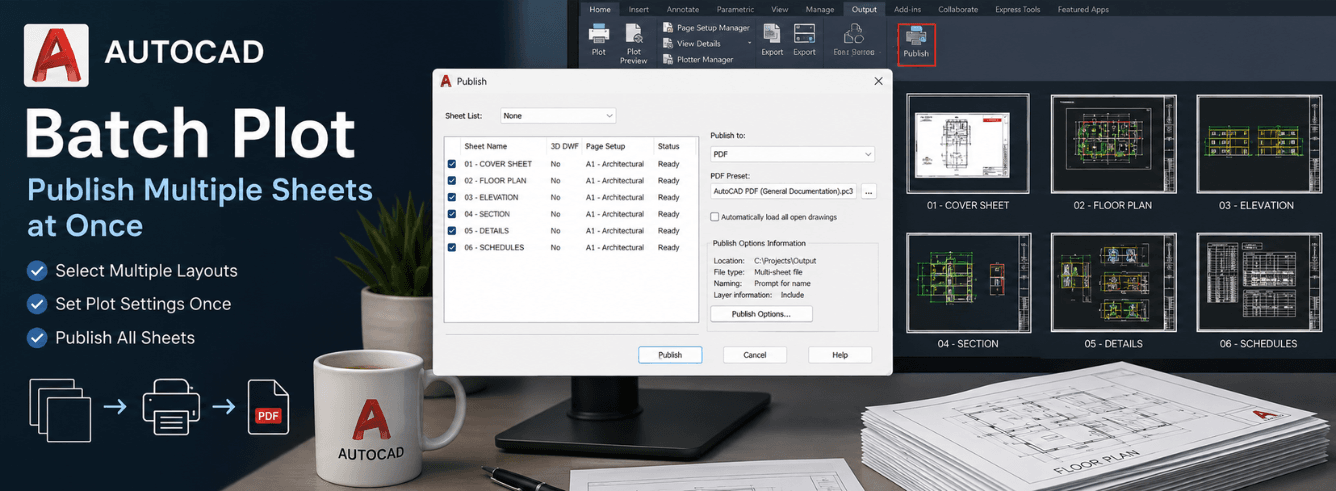
If you have ever wondered how to batch plot in AutoCAD without opening every layout individually, the PUBLISH command is your answer — and this guide walks you through every step, from page setup to troubleshooting the dreaded “dots on my plots.”
- Batch plotting saves hours by printing all layouts from one or multiple DWG files in a single operation.
- Page setups are the foundation — set them once, reuse them forever.
- The PUBLISH command supports single multi-sheet PDFs or separate files per sheet.
- If you see “dots on my plots”, the fix is usually in your CTB/STB plot style table or color mapping.
- Sheet Set Manager takes batch plotting to the next level for large projects.
Why your batch plot keeps failing (and how to fix it)
You have a dozen layouts ready to go. You fire up PUBLISH. Nothing comes out. Or worse — you get a PDF full of dots, missing lineweights, or pages that look nothing like your screen.
This is the most common frustration with batch plot AutoCAD workflows. The good news: almost every failure traces back to one of three things.
The three failure modes
- Page setup mismatch — each layout uses a different plotter, paper size, or scale. PUBLISH gets confused and either skips sheets or produces inconsistent output.
- Plot style table missing or wrong — your CTB or STB file is not where AutoCAD expects it, or the colors in your drawing don’t map correctly to the plot style.
- Background plotting glitch — in AutoCAD 2026, background publishing can sometimes fail silently, producing nothing at all[reference:14].
Pro tip: Before you batch plot, always run a test plot from a single layout. If that works, your page setup and plot style are correct — the problem is likely in the PUBLISH settings themselves.
| Failure symptom | Likely cause | Quick fix |
|---|---|---|
| PUBLISH runs but produces no PDF | Background plotting glitch | Uncheck “Publish in background”[reference:15] |
| Output has random dots or speckles | CTB/STB missing or color mismatch | Check plot style table path[reference:16] |
| Some sheets print, others don’t | Mixed page setups | Apply page setup override to all sheets |
| Lines are too thick or too thin | Plot style not applied | Assign correct CTB in page setup |
Page setup: the foundation of reliable batch plotting
If you skip this step, how to batch plot in AutoCAD becomes an exercise in frustration. Page setups store everything: plotter, paper size, plot area, scale, and plot style table[reference:17].
Think of a page setup as a saved preset. Once you create one, you can apply it to any layout with one click.
How to create a page setup
- Right-click the Model tab or any Layout tab at the bottom of the drawing window.
- Select Page Setup Manager from the context menu[reference:18].
- Click New and give your setup a name — something like “A3_PDF_Color” or “Letter_BW_Plot.”
- Choose your printer/plotter (e.g., DWG to PDF.pc3 for PDF output).
- Set paper size, plot area (Layout or Window), scale, and plot style table (CTB or STB)[reference:19].
- Click OK to save[reference:20].
Note: Named page setups live inside the DWG file. If you create a setup in one drawing, it is not available in another drawing unless you import it or use a template (DWT) file that already contains the setups[reference:21].
Applying page setups to layouts
Once your page setups exist, open each layout, right-click the layout tab, and choose Page Setup Manager. Select the setup you created and click Set Current.
Now every layout in your drawing has a consistent, saved configuration. PUBLISH will use these settings automatically when you batch plot[reference:22].
PUBLISH command: step-by-step walkthrough
With page setups in place, batch plot AutoCAD becomes a straightforward process. Here is exactly how to run PUBLISH[reference:23][reference:24].
Step 1 — Open the Publish dialog
Type PUBLISH in the AutoCAD command line and press Enter[reference:25][reference:26]. Alternatively, go to the Output tab and click Publish[reference:27].
The Publish dialog opens with a sheet list that, by default, includes the Model space and every layout in the current drawing[reference:28][reference:29].
Step 2 — Build and order your sheet list
- Remove sheets you do not want to plot — usually the Model row, unless you are plotting from Model space[reference:30].
- Add Sheets from other DWG files on disk to include multiple drawings in one batch plot[reference:31][reference:32].
- Drag rows up and down to set the order pages appear in the final PDF[reference:33].
- Rename sheets if you want clean PDF bookmarks and page labels[reference:34].
Step 3 — Choose your output
At the top of the Publish dialog, the Publish to dropdown sets the destination[reference:35][reference:36]:
- PDF — creates PDF files (single multi-sheet or individual per sheet).
- Plotter named in page setup — sends each sheet to its assigned physical plotter[reference:37].
- DWF / DWFx — for markup and review workflows[reference:38].
Step 4 — Apply page setup overrides
The Page Setup column lets you override each sheet’s settings at publish time[reference:39]. This is how you force a mixed set of layouts to use the same plotter, paper size, or CTB file — even if the original layouts had different setups[reference:40].
Step 5 — Save and publish
Before clicking Publish, click Save Sheet List to save the list as a DSD (Drawing Set Description) file[reference:41][reference:42]. The DSD records which sheets, in what order, with what settings — so next time, you can load it and publish with one click[reference:43].
Then click Publish and let AutoCAD do the work[reference:44].
Pro tip: Always save your sheet list as a DSD file. The first time you set up a drawing set takes a few minutes. The second time takes five seconds.
Single PDF vs multiple PDFs: which to choose
The PUBLISH command offers two PDF output modes, and choosing the right one depends on how you deliver drawings.
| Feature | Single multi-sheet PDF | Individual PDF per sheet |
|---|---|---|
| Output | One file with all pages | Separate file for each sheet |
| Best for | Complete drawing sets, emailing, client submissions | Individual sheet distribution, separate review |
| File management | One file to track and archive | Many files to manage |
| Bookmarks | Automatic page labels from sheet names[reference:45] | Not applicable |
| Plot order | Preserved in pagination[reference:46] | Files named individually |
To choose between them, open Publish Options before clicking Publish. Check or uncheck the Multi-sheet file option[reference:47]. For most project deliverables, a single multi-sheet PDF is the cleaner, more professional choice[reference:48][reference:49].
Note: If you are publishing from Sheet Set Manager, AutoCAD automatically combines all sheets into a single multi-page PDF when PUBLISHCOLLATE is set to 1[reference:50].
Fixing “dots on my plots” — CTB/STB troubleshooting
One of the most searched AutoCAD problems is “autocad dots on my plots” — random dots, speckles, or missing lineweights that ruin an otherwise perfect print[reference:51].
This is almost always a plot style table issue. Here is what causes it and how to fix it.
What are CTB and STB files?
- CTB (Color-Dependent Plot Style) — maps each of the 255 AutoCAD colors to a specific pen width, screening value, and linetype. If you use color-based drafting, this is your primary tool.
- STB (Named Plot Style) — assigns plot styles by name rather than by color. More flexible but less common in traditional CAD workflows[reference:52].
Why dots appear
Dots or speckles in your plotted output typically come from one of these causes:
- Missing CTB file — AutoCAD cannot find the plot style table. It substitutes a default or skips lineweight mapping entirely[reference:53].
- Color mismatch — your drawing uses a color (say, color 8) that the CTB file does not define, or defines with an unintended screening value.
- DGN linetypes or proxy objects — imported objects from MicroStation or other formats sometimes plot as dots when AutoCAD cannot interpret them properly.
- Plot style path error — AutoCAD is looking in the wrong folder for your CTB files[reference:54].
How to fix “dots on my plots”
- Step 1: Type STYLESMANAGER in the command line. This opens the folder where AutoCAD stores plot style tables[reference:55][reference:56].
- Step 2: Verify that your CTB or STB file exists in this folder. If it is missing, copy it from a working machine or your office template[reference:57].
- Step 3: Open the Page Setup Manager for any layout. Under Plot style table (pen assignments), check if a warning symbol (⚠) appears next to your current plot style[reference:58]. If so, switch to a different plot style or fix the path[reference:59].
- Step 4: If the CTB exists but dots persist, open the CTB file with the PLOTSTYLE command. Check the Screening value for each color — if screening is set to 0%, that color becomes invisible (no dots). If set to a very low percentage like 1–5%, it prints as tiny dots.
- Step 5: For imported DGN objects, try the DGNOSNAP command or explode and re-create the offending geometry.
Warning: Do not set all colors to “Use object lineweight” in your CTB unless you have explicitly assigned lineweights to every object. This often makes lines too thin and creates a messy, unprofessional look.
Pro tip: Standardize your CTB files across your entire team. Put them on a network drive and set every AutoCAD installation to look there first (Options → Files → Printer Support File Path → Plot Style Table Search Path)[reference:60].
Sheet Set Manager: batch plotting for large projects
Once you have mastered how to batch plot in AutoCAD with PUBLISH, the next level is Sheet Set Manager (SSM). This is the professional’s tool for managing and plotting entire projects[reference:61].
What Sheet Set Manager does
SSM acts as a central hub for your project. It organizes all drawings, layout sheets, and their metadata in one place[reference:62]. With a configured sheet set, you can[reference:63][reference:64]:
- One-click batch plotting — right-click the entire project or a subset and select “Publish to PDF.”
- Automatic page numbering — sheets are numbered sequentially across the entire set[reference:65].
- Consistent settings — every sheet uses the same page setup and plot style[reference:66].
- Background plotting — SSM can publish while you continue working on other drawings.
How to set up a sheet set for batch plotting
- Type SHEETSET in the command line to open the Sheet Set Manager panel[reference:67].
- Create a new sheet set, choosing “From existing drawings” to import your current project files[reference:68].
- Add all layouts that belong to the drawing set.
- Configure page setups once at the sheet set level — they apply to every sheet in the set.
- When ready, right-click the sheet set and select Publish → Publish to PDF.
Note: Sheet Set Manager is available in full AutoCAD but not in AutoCAD LT[reference:69]. LT users should rely on PUBLISH or third-party tools.
Troubleshooting quick reference
When batch plot AutoCAD goes wrong, use this quick reference to diagnose and fix the problem.
| Problem | Diagnosis | Solution |
|---|---|---|
| PUBLISH produces nothing | Background plotting glitch | Uncheck “Publish in background”[reference:70] |
| PUBLISH produces nothing (persistent) | System variable issue | Set BACKGROUNDPLOT=0[reference:71] and PUBLISHCOLLATE=1[reference:72] |
| Dots / speckles on output | CTB missing or color mismatch | Check STYLESMANAGER folder[reference:73] |
| Dots / speckles (CTB exists) | Screening value too low | Edit CTB, increase screening % |
| Sheets print with wrong size | Mixed page setups | Apply page setup override in PUBLISH[reference:74] |
| Lines too thick or thin | CTB not applied | Assign CTB in page setup[reference:75] |
| Some sheets missing from PDF | Sheets removed from list | Check sheet list before publishing[reference:76] |
| PDF has wrong page order | Sheet list order incorrect | Drag sheets into correct sequence[reference:77] |
Batch plotting is the difference between issuing a drawing set in minutes and babysitting the plotter for an afternoon[reference:78].
Frequently asked questions
Why does my PUBLISH command produce no PDF in AutoCAD 2026?
This is a known issue with background plotting in AutoCAD 2026[reference:79]. Open the Publish dialog and uncheck the “Publish in background” checkbox in the lower right corner[reference:80][reference:81]. If that does not work, set the system variable BACKGROUNDPLOT=0 to force foreground plotting[reference:82][reference:83].
Can I batch plot from Model space in AutoCAD?
Yes, but it requires extra setup. Right-click the Model tab, open Page Setup Manager, and create a named page setup for each “sheet” you want to plot[reference:84]. Then use the Batch Print option under the application menu (File → Print → Batch Print)[reference:85]. However, layouts are strongly recommended for formal drawing sets because they preserve title blocks, viewport scales, and sheet-specific settings[reference:86].
How do I batch plot multiple DWG files at once?
In the PUBLISH dialog, click Add Sheets and select multiple DWG files from disk[reference:87]. All layouts from all selected files appear in the sheet list. You can then reorder, rename, and publish them as one set[reference:88]. Save the list as a DSD file for future use[reference:89].
What is the difference between CTB and STB plot styles?
CTB (Color-Dependent) plot styles map AutoCAD colors (1–255) to specific pen widths, screening, and linetypes. This is the traditional and most common method. STB (Named) plot styles assign plot properties by name rather than by color, offering more flexibility for offices that want plot settings independent of object color[reference:90]. Most engineering and architecture firms use CTB.
Can AutoCAD LT batch plot?
AutoCAD LT includes the PUBLISH command and can batch plot to PDF or physical plotters[reference:91]. However, LT does not include Sheet Set Manager[reference:92]. LT users also cannot use the Batch Print feature from Model space that is available in full AutoCAD. For complex batch plotting in LT, third-party tools like Hurricane are an option[reference:93].
Why are there random dots on my AutoCAD plots?
Random dots, speckles, or missing lineweights are almost always caused by a missing or misconfigured CTB/STB plot style table[reference:94]. Check that your CTB file exists in the folder opened by the STYLESMANAGER command[reference:95]. If it exists, open it and verify that the Screening value for each color is set appropriately (100% for solid, not 0% or a very low percentage). Also check that the drawing’s colors match the colors defined in the CTB.
Ready to batch plot like a pro? Get genuine AutoCAD today.
Genuine Autodesk AutoCAD for Windows — 2024–2026 release. 1 Year Subscription, 30 Days Refund. Delivered by email within 1–12 hours. Activate on your own Autodesk account.
Check AutoCAD price →Also available: AutoCAD for Mac · AutoCAD Commercial License