
Blog
AutoCAD Drawing Recovery Manager: Recovering an Unsaved or Crashed File

AutoCAD Drawing Recovery Manager: How to Recover a Crashed or Unsaved File
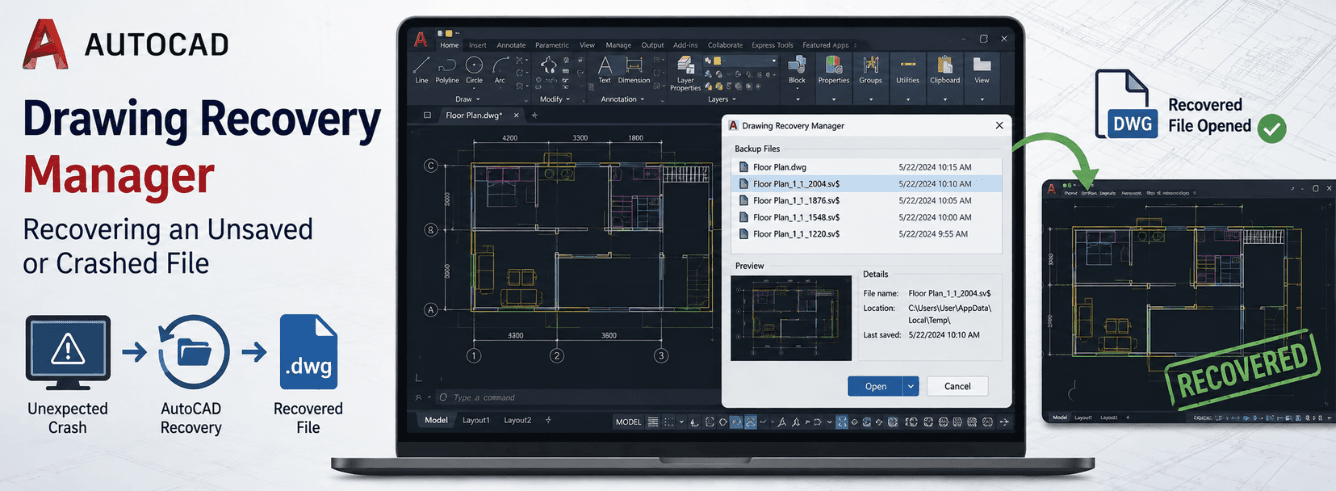
The AutoCAD Drawing Recovery Manager is your first line of defense when a crash or power failure threatens hours of design work — here’s exactly how to use it, plus what to do when it doesn’t show up.
- The AutoCAD Drawing Recovery Manager automatically appears after a crash — but you can also launch it manually with the
DRAWINGRECOVERYcommand. - If the Recovery Manager is empty or missing, manually recover your work from .BAK (backup) or .SV$ (autosave) files.
- For corrupted drawings that won’t open, use the RECOVER, RECOVERALL, or AUDIT commands to repair the file.
- Prevent future data loss by adjusting SAVETIME, enabling backup creation, and setting ISAVEPERCENT to 50 or higher.
What Is the AutoCAD Drawing Recovery Manager?
You’re deep into a detailed floor plan, tweaking dimensions, about to hit save — and then AutoCAD freezes. The screen goes grey, the cursor spins, and your heart sinks. It’s a scenario every AutoCAD user knows, and it’s exactly why the AutoCAD Drawing Recovery Manager exists.
The Drawing Recovery Manager is AutoCAD’s built-in safety net for program or system failures. When AutoCAD crashes or your system shuts down unexpectedly, this tool captures the state of every drawing that was open at the moment of failure.
What the Drawing Recovery Manager Shows You
Under the “Backup Files” heading, the Recovery Manager lists up to four file types for each drawing that was open during the crash:
- The recovered drawing file — saved at the time of the program failure (.DWG or .DWS). This is the most recent recoverable version.
- The automatic save file — also called the “autosave” file (.SV$). This captures your work up to the last autosave interval.
- The drawing backup file (.BAK) — an exact copy of the drawing from the last manual save.
- The original drawing file (.DWG or .DWS) — the last successfully saved version before the crash.
You can preview each file as a thumbnail and open any version to check which one contains the most recent work. Once you open and save a recovered file, its entry is automatically removed from the Backup Files area.
Pro tip: The Recovery Manager doesn’t just show your main drawing — it also lists any attached Xrefs that were open. This is especially useful for complex projects with multiple reference files.
How to Access the Drawing Recovery Manager
The AutoCAD Drawing Recovery Manager is designed to appear automatically, but there are several ways to access it depending on your situation. Here’s what to do in each scenario.
Scenario 1: After a Crash — Automatic Launch
When AutoCAD crashes or closes unexpectedly, the very first thing you should do is relaunch the program. In most cases, the Drawing Recovery Manager panel will automatically appear on the left side of your screen upon restart.
If it appears, you’re in luck — the hard work is already done. Simply expand the tree view for your drawing, preview the available files, and open the most recent version (usually the .SV$ autosave file).
Scenario 2: The Recovery Manager Doesn’t Appear
Sometimes the Recovery Manager doesn’t open automatically. This can happen for a few reasons: the crash wasn’t severe enough to trigger it, you accidentally closed the panel, or you’re using AutoCAD LT. Don’t panic — you can open it manually.
Here are three ways to launch the AutoCAD Drawing Recovery Manager manually:
- Via the Application Menu: Click the big “A” in the top-left corner → Drawing Utilities → Open the Drawing Recovery Manager.
- Via Command Line (AutoCAD): Type
DRAWINGRECOVERYinto the command line and press Enter. - Via Command Line (AutoCAD LT): The menu option may not be available in LT, but the
DRAWINGRECOVERYcommand works the same way.
Scenario 3: The Recovery Manager Is Open but Empty
If the Recovery Manager appears but shows no files, it means AutoCAD couldn’t detect any recoverable drawings from the crash. This is more common than you’d think, and it usually points to one of two things: your autosave settings weren’t enabled, or the temporary files were deleted.
When this happens, don’t rely on the Recovery Manager — switch to manual recovery using .BAK and .SV$ files (covered in the next section).
Quick win: If the Recovery Manager is hidden behind another window or set to auto-hide, close all internal AutoCAD windows and look for it on the edges of your screen. You can also try typing DRAWINGRECOVERY again to bring it to the front.
Heads up: If the “Drawing Recovery Manager” option is completely missing from your Application Menu, you can still access it via the DRAWINGRECOVERY command. This is a known issue in some versions and the command-line workaround always works.
Manual Recovery: .BAK and .SV$ Files
Sometimes the AutoCAD Drawing Recovery Manager simply doesn’t have what you need. Maybe it didn’t launch, maybe it’s empty, or maybe you closed AutoCAD and clicked “No” to save — in which case the automatic recovery won’t trigger at all. This is when manual recovery becomes your best friend.
AutoCAD creates two types of backup files behind the scenes: .BAK (backup) files and .SV$ (autosave) files. Understanding the difference is the key to getting your work back.
| Feature | .BAK (Backup File) | .SV$ (Autosave File) |
|---|---|---|
| When created | Every time you manually save the drawing | Every X minutes (default: 10) while you work |
| Default location | Same folder as the original .DWG file | Windows: C:\Users\[username]\AppData\Local\TempMac: /Users/username/Documents/Autodesk/Autosave |
| How to recover | Rename .BAK to .DWG and open in AutoCAD | Rename .SV$ to .DWG and open in AutoCAD |
| What it contains | Exact copy of the drawing from the last manual save | Your work up to the last autosave interval |
| How many retained | Only one — newer backups replace older ones | Multiple — each autosave creates a new temporary file |
How to Recover from a .BAK File
Drawing backup (.BAK) files are created every time you manually save your drawing, by default. To recover from a .BAK file:
- Navigate to the folder where your original .DWG file is stored (the .BAK file is saved in the same location by default).
- Locate the .BAK file with the same name as your drawing (e.g.,
floorplan.bak). - Rename the file — change the extension from
.bakto.dwg. - Open the renamed .DWG file in AutoCAD. If the file opens successfully, save it immediately with a new name to avoid overwriting the original.
Important: A .BAK file is only as recent as your last manual save. If you’ve been working for two hours without saving, the .BAK file won’t have any of that work.
How to Recover from an .SV$ (Autosave) File
Autosave (.SV$) files are created automatically at regular intervals while you work. These are usually your best bet for recovering recent work after a crash, because they capture changes between manual saves.
To recover from an .SV$ file:
- Find the autosave folder: On Windows, type
%tmp%into the Start menu to open the Temp folder. On Mac, check/Users/username/Documents/Autodesk/Autosave. - Look for a file with the same name as your drawing, a timestamp code, and a
.sv$extension. - Rename the file — change the extension from
.sv$to.dwg. - Open the renamed .DWG file in AutoCAD. If it opens, save it immediately with a new name.
Note: Autosave files are temporary and are automatically deleted when AutoCAD closes normally. They only survive if AutoCAD crashes or your system fails — which is exactly when you need them.
Critical: Before renaming any .BAK or .SV$ file, make a copy of the original file and work on the copy. Never overwrite your original .DWG unless you’re absolutely sure the recovered version is correct. You can always try again with another copy.
When Recovery Manager Fails: RECOVER and AUDIT
Sometimes the file you recover opens, but something’s wrong — missing layers, corrupted geometry, or AutoCAD simply refuses to open it at all. This is where the AutoCAD Drawing Recovery Manager hands off to more specialized repair tools: RECOVER and AUDIT.
These commands are designed to fix corrupted .DWG files that won’t open properly or that cause performance issues.
When to Use Each Command
The difference between RECOVER and AUDIT is simple but important:
- RECOVER: Use this when a drawing won’t open at all. RECOVER attempts to open the file and fix errors during the opening process.
- AUDIT: Use this when a drawing opens but has problems — missing elements, slow performance, or error messages. AUDIT checks and fixes the database while the drawing is already open.
How to Use the RECOVER Command
- Close the problematic drawing if it’s currently open.
- In AutoCAD, type
RECOVERinto the command line and press Enter. - In the Select File dialog box, navigate to and select the damaged .DWG file.
- AutoCAD will attempt to open the file, repairing any errors it finds along the way.
- Once the file opens, use
SAVEASto save it with a new name — this preserves the original file in case you need to try again.
How to Use the AUDIT Command
- Open the problematic drawing in AutoCAD (if it opens at all).
- Type
AUDITinto the command line and press Enter. - When prompted “Fix any errors detected?”, type
Y(Yes) and press Enter. - AutoCAD will check the entire drawing database and fix any errors it finds.
- After the audit is complete, save the drawing with a new name.
Pro tip: For maximum recovery success, try RECOVER first. If that doesn’t work, open a new blank drawing, type RECOVER, and select the damaged file — this sometimes bypasses issues that prevent the file from opening normally.
Critical: If AUDIT causes AutoCAD to freeze or crash, try opening a new blank drawing first, then use RECOVER on the problematic file. This is a known workaround for stubborn corruption issues.
RECOVERALL for Drawings with Xrefs
If your drawing contains external references (Xrefs) — and most complex AutoCAD projects do — a simple RECOVER command might not be enough. When Xrefs are corrupted or missing, they can cause the host drawing to crash or fail to open entirely.
Enter RECOVERALL: a command that does everything RECOVER does, but also audits and repairs every external reference attached to the drawing.
How to Use RECOVERALL
- Open a new, blank drawing in AutoCAD.
- Type
RECOVERALLinto the command line and press Enter. - In the Select File dialog box, select the main .DWG file that contains Xrefs.
- AutoCAD will open the drawing and run error-checking on both the host file and every attached Xref.
- Once the process is complete, save the drawing with a new name.
RECOVERALL is especially useful when you’re getting errors about missing or corrupted Xrefs, or when the host drawing opens but referenced files won’t display properly.
Note: RECOVERALL works on .DWG, .DWT, and .DWS files. If you’re working with a project that has multiple Xrefs, run RECOVERALL on the host file first — it’s faster than running RECOVER on every single reference file individually.
Preventing Future Crashes and Data Loss
No matter how good the AutoCAD Drawing Recovery Manager is, prevention is always better than recovery. Here’s how to configure AutoCAD to minimize the damage when crashes happen — and ideally prevent them altogether.
Adjust the Autosave Interval (SAVETIME)
By default, AutoCAD autosaves every 10 minutes. That means if a crash happens at 9:59, you lose almost 10 minutes of work. Here’s how to reduce that risk:
- Type
SAVETIMEinto the command line and press Enter. - Enter a new value in minutes — 1 to 5 minutes is recommended for active projects.
- Setting SAVETIME to
0disables autosave entirely — don’t do this.
Enable Backup File Creation (ISAVEBAK)
Backup (.BAK) files are created only if the system variable ISAVEBAK is set to 1. To enable it:
- Type
ISAVEBAKinto the command line and set it to1(enabled). - Or go to Options → Open and Save tab → check “Create backup copy with each save”.
Increase Save Fidelity (ISAVEPERCENT)
The ISAVEPERCENT variable controls how much of the drawing is saved during incremental saves. Setting it higher reduces the chance of corruption:
- Type
ISAVEPERCENTinto the command line. - Set it to 50 or higher to increase save fidelity.
Use MOVEBAK to Organize Backup Files
If you’re tired of .BAK files cluttering your project folders, AutoCAD Express Tools includes the MOVEBAK command, which lets you specify an alternative folder for all .BAK files.
- Type
MOVEBAKinto the command line. - Specify a folder path where all .BAK files should be automatically moved.
- Enter
.(a period) to reset to the default behavior.
Note: MOVEBAK is only available in Autodesk products that include Express Tools.
Best Practice Checklist
- Save manually and often — keyboard shortcuts (Ctrl+S) are your best defense.
- Set SAVETIME to 1–5 minutes depending on how much work you’re willing to lose.
- Enable ISAVEBAK to always have a recent .BAK file available.
- Set ISAVEPERCENT to 50 or higher for better save fidelity.
- Use MOVEBAK to keep backup files organized in a single location.
- Keep regular external backups of critical project files.
The Drawing Recovery Manager won’t save you if you’ve disabled autosave — check your SAVETIME and ISAVEBAK settings today, before the crash happens.
Frequently asked questions
How do I open the AutoCAD Drawing Recovery Manager manually?
Type DRAWINGRECOVERY into the command line and press Enter. Alternatively, click the Application menu (the big “A”) → Drawing Utilities → Open the Drawing Recovery Manager. If you’re using AutoCAD LT, only the command-line method works.
Where does AutoCAD save autosave (.SV$) files?
On Windows, the default location is C:\Users\[username]\AppData\Local\Temp. You can open this folder quickly by typing %tmp% into the Start menu. On Mac, the default location is /Users/username/Documents/Autodesk/Autosave.
What’s the difference between .BAK and .SV$ files in AutoCAD?
.BAK files are created every time you manually save your drawing and are stored in the same folder as the original .DWG. They contain an exact copy of the drawing from the last manual save. .SV$ files are autosave files created at regular intervals (default: every 10 minutes) and are stored in the Temp folder. .SV$ files are usually more recent because they capture changes between manual saves.
How do I recover a corrupted AutoCAD file that won’t open?
Use the RECOVER command: type RECOVER into the command line, select the corrupted .DWG file, and let AutoCAD attempt to open and repair it. If the file contains external references (Xrefs), use RECOVERALL instead to repair both the host drawing and all attached Xrefs. If the file opens but has problems, use the AUDIT command to check and fix errors.
How can I prevent AutoCAD from losing my work in a crash?
Set SAVETIME to 1–5 minutes to increase autosave frequency. Enable ISAVEBAK (set to 1) to always create backup files. Set ISAVEPERCENT to 50 or higher for better save fidelity. And most importantly — save manually (Ctrl+S) frequently.
Why is my Drawing Recovery Manager empty after a crash?
This usually happens when autosave wasn’t enabled, the temporary files were deleted, or the crash wasn’t severe enough to trigger the recovery system. When this happens, switch to manual recovery: look for .BAK files in your drawing folder or .SV$ files in the Temp folder, rename them to .DWG, and open them in AutoCAD.
Get Genuine AutoCAD for Windows — Delivered in 1–12 Hours
Ready to work with a genuine Autodesk AutoCAD for Windows license? Zoftis offers 1-year subscriptions from $59 — activated on your own Autodesk account, with a 30-day money-back guarantee. No workarounds, no grey-market risks.
View AutoCAD for Windows →Also available: AutoCAD for Mac · AutoCAD LT