
Blog
Best Revit Plugins and Add-Ins to Speed Up Your Workflow

Best Revit Plugins for BIM Managers: The 2026 Performance Stack
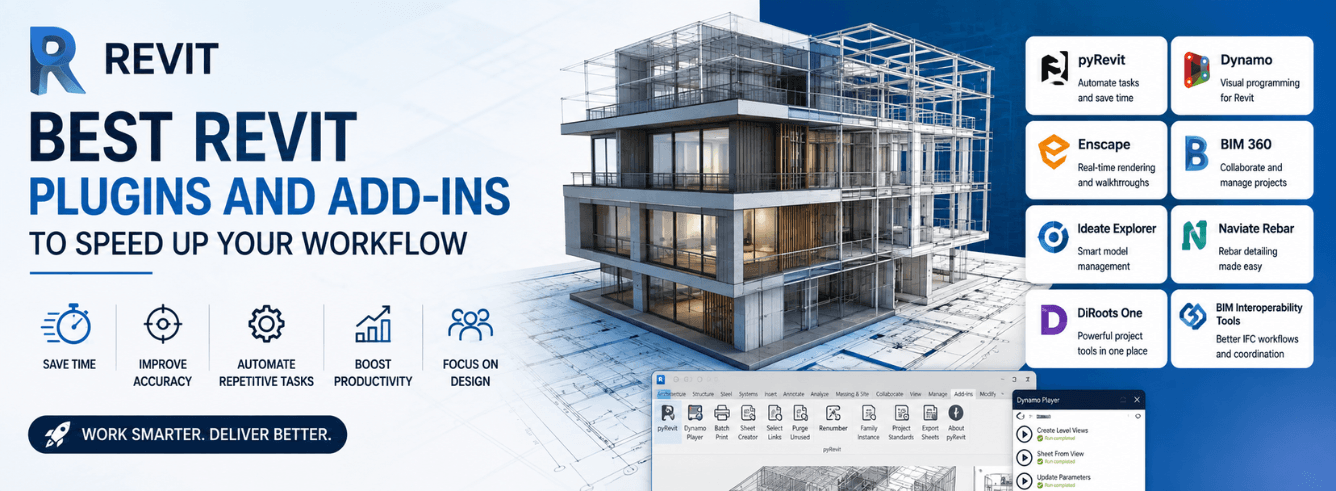
The right Revit plugins are what separate a team that fights the software from one that bends it to their will. After watching BIM studios waste thousands of billable hours on manual work that a free add-in could handle in seconds, we’ve put together the stack that actually moves the needle.
Why a plugin stack beats a random collection
Most “best Revit plugins” articles hand you a list of 20 add-ins and wish you luck. That approach breaks down in a real office. Plugins conflict. They overload the ribbon. They get installed and forgotten. And when a junior architect loads every free toy from the Autodesk App Store, model performance tanks and the BIM manager spends Monday morning untangling the mess.
A stack is different. It’s a deliberate, layered set of Revit add ins where each tool has a clear role, no two tools fight over the same territory, and the whole assembly stays lean enough that Revit still launches in under 30 seconds. Think of it like a kitchen: you don’t own every gadget at the restaurant supply store — you own the knives, pans, and mixers that earn their place every service. Everything else is clutter that slows you down.
The stack principle applies whether you’re a solo practitioner or managing 50 seats. Start with free tools, add paid ones surgically, and audit your deployed plugins every quarter. If a tool hasn’t been used in three months, pull it.
Three rules for a stable Revit plugin stack
- No overlapping functionality. Pick one tool for parameter management, one for sheet creation, one for export. Two tools fighting for the same job create confusion and model corruption risk.
- Free before paid, always. pyRevit and Dynamo solve 70% of what commercial tools charge for. Don’t buy a paid plugin until you’ve exhausted what the free layer can do.
- Version-lock everything. Before a Revit upgrade, check every plugin for compatibility with the new build. One incompatible add-in can crash the whole session — and the Autodesk App Store won’t warn you.
The free foundation every Revit seat needs
If you install nothing else, install these three. They’re free, they’re actively maintained in 2026, and they form the base layer that paid tools build on. Every BIM manager we talk to starts here — and most admit they should have started years earlier.
| Plugin | What it does | Free/Paid |
|---|---|---|
| pyRevit | Scriptable automation, batch sheet generation, model health checks, custom ribbon tabs — effectively a mini operating system inside Revit | Free (open source, GitHub) |
| Dynamo | Visual scripting for parametric workflows, data extraction, geometry manipulation, and custom logic without writing C# | Free (bundled with Revit) |
| DiRootsOne | Free suite covering sheet generation (SheetGen), data export (TableGen), family auditing (FamilyReviser), and parameter filtering | Free (registered account required) |
pyRevit deserves a paragraph of its own. Built by Ehsan Iran-Nejad and maintained by a dedicated open-source community, it’s the single most capable free Revit plugin in existence. It ships with over 50 tools out of the box — batch sheet creation, view duplication with custom naming rules, pattern-based element selection, and a full scripting console that runs Python directly inside Revit. Teams that adopt pyRevit early report saving 5–10 hours per person per week on repetitive documentation tasks. For a four-person studio, that’s a full-time equivalent rescued from drudgery. All for zero license cost.
Dynamo ships with Revit 2020 and later — no separate install required. If you’re on a current Revit license, you already own it. The Dynamo Player lets non-scripters run packaged graphs with one click, so your team doesn’t need to learn visual programming to benefit from it.
DiRootsOne rounds out the free foundation. Where pyRevit handles automation and Dynamo handles logic, DiRootsOne excels at data movement: pulling schedules into formatted Excel sheets, filtering elements by complex parameter rules, and batch-checking families for broken constraints. The suite installs as a single ribbon tab and plays nicely with both pyRevit and Dynamo — the three tools rarely step on each other’s toes.
Model and project management plugins that prevent chaos
Once the free foundation is in place, model management is usually the first place teams need reinforcement. A 400 MB central model with 180,000 warnings and a dozen unaddressed review comments isn’t just annoying — it’s a billable-hour black hole. These plugins for Revit target model health, content governance, and issue tracking.
| Plugin | Best for | Approximate cost |
|---|---|---|
| Guardian (Parallax Team) | Automated model checking against office BIM standards — catch issues before submission, not during coordination | Paid (subscription, contact vendor) |
| BIM Track | Web-based issue tracking with a Revit add-in connector. Issues pinned to elements, linked to clash reports, with dashboard analytics | Free tier available; Pro starts at $35/user/month |
| Ideate Explorer | Deep model navigation — find every instance of a family, audit line styles, purge hidden junk that Revit’s built-in Purge Unused misses | ~$795/year per seat |
| Unifi | Content library management inside Revit. Tag, search, and load office-standard families without leaving the ribbon | Free tier for small teams; Pro plans available |
Guardian is the heavyweight here. It runs a rule engine against your model at set intervals — or on demand — and flags everything from fire-rating parameter omissions to duct-insulation gaps. The real value isn’t the checking itself; it’s that BIM managers can write the rules once and let the engine enforce them across every project, removing human inconsistency from the compliance loop. If your firm does healthcare or infrastructure work where BIM standard adherence is contractually binding, Guardian pays for itself within the first RFI avoided.
BIM Track takes a lighter, communication-first approach. It’s less about automated rule-checking and more about making sure that when a coordinator spots a clash, the assigned fixer actually sees it, addresses it, and closes the loop. The Revit add-in pins issues directly to model elements, so you can walk the model in 3D and see open tickets floating in context — far more effective than an emailed spreadsheet.
Don’t deploy multiple model-auditing tools simultaneously. Guardian and Ideate Explorer, for example, both dig deep into model data — running both can slow sync times noticeably. Pick one audit tool and standardize the office on it.
Documentation and annotation tools that cut sheet time in half
Documentation is where the clock really burns. Dimensioning, tagging, sheet assembly, and revision management eat roughly 40% of a typical architect’s Revit hours. The right Revit add ins in this category don’t just speed things up — they enforce consistency so that every sheet set leaving the office looks like it came from one hand, not five people working at 2 AM the night before a deadline.
| Plugin | Core capability | Free/Paid |
|---|---|---|
| Rushforth Tools | Parameter-driven sheet and view creation, batch printing, view-template assignment by rule | Paid (~$95/year for core tools) |
| CTC BIM Manager Suite | Enterprise-grade sheet and family management — Project Cleaner, Family Processor, Spreadsheet Link | Paid (quote-based, typically enterprise) |
| Xrev Transmit (by Xrev) | Automated PDF/DWF/DWG export with naming conventions, revision handling, and transmittal creation | Paid (subscription, ~$300/year) |
Rushforth Tools hits the sweet spot for small-to-midsize studios. It’s affordable, lightweight, and laser-focused on documentation throughput. Its parameter-driven sheet creator reads a CSV of sheet names and numbers, then generates every sheet, assigns the correct title block, and places views — all in one pass. What used to take half a day per discipline now takes roughly 90 seconds. At $95 a year for the core module, it’s essentially free relative to the time it saves on a single project.
The CTC BIM Manager Suite is the enterprise play. If you’re managing 30-plus seats across multiple offices, CTC’s tools are purpose-built for that scale. The Spreadsheet Link module alone — which bidirectionally syncs Revit schedules with live Excel workbooks — eliminates the ritual of exporting, editing, and reimporting data for door schedules, equipment lists, and room data sheets. It’s not cheap, but at enterprise volumes, the ROI case writes itself within a single project phase.
The fastest sheet set is the one where nobody manually renumbers a view reference. Parameter-driven automation wins every time.
Data handling and interoperability add-ins
Revit models don’t live in isolation. They feed data to spec writers, cost estimators, facility managers, and sustainability consultants. A model rich with metadata is an asset beyond design coordination — but only if that data can escape Revit in a structured, reliable format. These third-party tools bridge the gap between your BIM environment and the broader project ecosystem.
| Plugin | Interoperability function | Typical cost |
|---|---|---|
| Ideate BIMLink | Bidirectional Excel-to-Revit data sync for schedules, parameters, and metadata across categories | ~$795/year per seat |
| COBie Extension (Autodesk) | Official Autodesk add-in for COBie-compliant data export per UK BIM Level 2 and ISO 19650 | Free (Autodesk App Store) |
| RVTools (by DiRoots) | Model data extraction, parameter comparison between versions, and forensic analysis of model changes | Free (part of DiRootsOne suite) |
Ideate BIMLink is the most powerful tool here for non-scripters. Its killer feature is the round-trip: export any schedule to Excel, let a non-Revit stakeholder (spec writer, estimator, facility planner) update the data in a familiar spreadsheet, then import the changes back into Revit. The software handles mapping, validation, and conflict resolution. No Python required. No Dynamo graph to maintain. For projects where data flows between Revit, cost databases, and FM systems, BIMLink pays for itself by preventing re-keying errors alone.
The COBie Extension deserves more attention than it gets. It’s free, it’s maintained by Autodesk, and it produces COBie-compliant spreadsheets directly from your Revit model — no middleware, no consultant overhead. If your firm bids on government or infrastructure work in regions that mandate COBie deliverables (UK, Australia, Singapore, parts of the Middle East), install this before you need it. Learning its parameter-mapping logic under deadline pressure is not an experience you want to repeat.
COBie output quality depends entirely on model metadata quality. Garbage parameters in, garbage COBie out. The COBie Extension is a delivery truck, not a data janitor — clean your parameters first.
Patching a real workflow: the coordinated stack in action
To show how these Revit plugins work together, let’s walk through a common scenario: producing a door schedule deliverable for a 120-unit residential project with a Friday deadline, where the spec writer just sent back 40 revised fire-rating values in an Excel sheet.
The old way: Open the door schedule in Revit. Manually locate each changed door. Type 40 new fire-rating values. Hope you didn’t fat-finger any. Export the schedule. Email it to the spec writer for a final check. Receive another round of changes. Repeat. Total time: maybe four hours, and your eyes are glazing over.
The stacked way, using three plugins:
- Step 1 – Import with Ideate BIMLink: Load the spec writer’s Excel sheet into BIMLink. The tool validates parameter names and door numbers automatically, flags any mismatches, and pushes all 40 fire-rating values into the model in one import pass. Time elapsed: under two minutes.
- Step 2 – Audit with DiRootsOne FamilyReviser: While the data is fresh, run FamilyReviser to check that all 120 door families still report consistent fire-rating parameters and that none have broken constraints from the bulk update. It catches two doors where the spec writer’s data referenced old family types. Fix both in under a minute.
- Step 3 – Automate sheet export with pyRevit: pyRevit’s batch sheet exporter regenerates every affected door-schedule sheet, applies the office’s PDF naming convention (ProjectCode-SheetNumber-Revision-Date), and drops the files into the project’s transmittal folder. You click one button, grab coffee, and come back to 15 perfectly named PDFs. Total active work time: about five minutes.
Four hours down to five minutes. That’s not a rounding error — that’s the practical difference between a BIM manager who has assembled a proper Revit plugins stack and one who hasn’t. And notably, this workflow used exactly two free tools and one paid tool. The paid tool (Ideate BIMLink) handled the one piece the free stack couldn’t do cleanly: the bidirectional Excel round-trip with validation. This is the stack philosophy in action — free where free works, paid only where it earns out.
Your Revit license is the platform — don’t skimp here
Every plugin in this article runs on one common platform: a genuine, activated copy of Autodesk Revit. The best workflow automation stack in the world won’t help if your license is unreliable, out of compliance, or — worse — flagged by Autodesk’s license verification and locked mid-project. The plugins aren’t the cost to watch. The platform is.
A Revit commercial license is the foundation that lets your team use these productivity tools without disruption. Whether you’re running pyRevit scripts, Dynamo graphs, or the full CTC suite, they all depend on a stable, genuine Revit installation that activates cleanly and stays activated through version upgrades.
Get genuine Autodesk Revit — delivered in 1–12 hours
Save up to 51% on a full Revit subscription. Genuine Autodesk Revit for Windows — 1-year or 3-year term, version years 2024–2027. Activation emailed quickly from Autodesk, redeemed to your own account. Backed by a 30-day money-back guarantee.
Get Revit — from $79/year →Need a commercial license for studio use? See our Revit Commercial License with full named-user rights.
Frequently asked questions
Are Revit plugins safe to install on production machines?
Most are, but not all. Stick to plugins from the official Autodesk App Store, established vendors (CTC, Ideate, Rushforth, Parallax), and well-maintained open-source projects on GitHub (pyRevit, Revit Lookup). Avoid random .addin files from forums or unverified download links. Before deploying any new plugin firm-wide, test it on one machine with a non-production copy of your current project file. If Revit crashes or sync times double, you’ll know before the whole office is affected.
Do free plugins like pyRevit work with Revit 2026?
Yes. The pyRevit project maintains active compatibility with the current Revit release, and version 5.x supports Revit 2024, 2025, and 2026. The DiRootsOne suite and Dynamo (bundled with Revit) are also current for 2026. Always check the plugin’s GitHub releases page or official site for a compatibility table — and never assume a plugin that worked with Revit 2024 will run on 2026 without confirmation.
How many plugins can I install before Revit slows down?
There’s no fixed number, but the rule of thumb from BIM managers we surveyed is 8–12 active plugins before you start noticing slower startup times and occasional UI lag. The bigger factor is plugin quality — one poorly coded add-in with a memory leak hurts performance more than ten clean ones. Monitor startup time: if Revit takes longer than 45 seconds to reach the home screen on an SSD-equipped workstation, audit your loaded plugins and disable anything unused.
Can Dynamo replace paid plugins entirely?
Partially. Dynamo with the Python node can replicate about 60–70% of what paid automation tools do, especially for one-off tasks. Where paid plugins win is in polished UIs for non-technical users, built-in validation that prevents bad data entry, and maintained compatibility guarantees. If your team has a dedicated Dynamo scripter, you can reduce paid plugin count significantly. If you don’t, a few strategic paid tools protect you from depending on a single person’s scripts.
What’s the one plugin every BIM manager should install first?
pyRevit. It’s free, open-source, and ships with enough built-in tools to replace four or five separate single-purpose plugins. Even if you install nothing else, pyRevit’s batch sheet creation, element selection by pattern, and scripting console will save measurable time from week one. Start there, learn what it can do, and only then evaluate where a paid tool fills a pyRevit gap.