
Blog
Tinkercad vs Fusion 360: When to Make the Jump

Tinkercad vs Fusion 360: When to Make the Jump
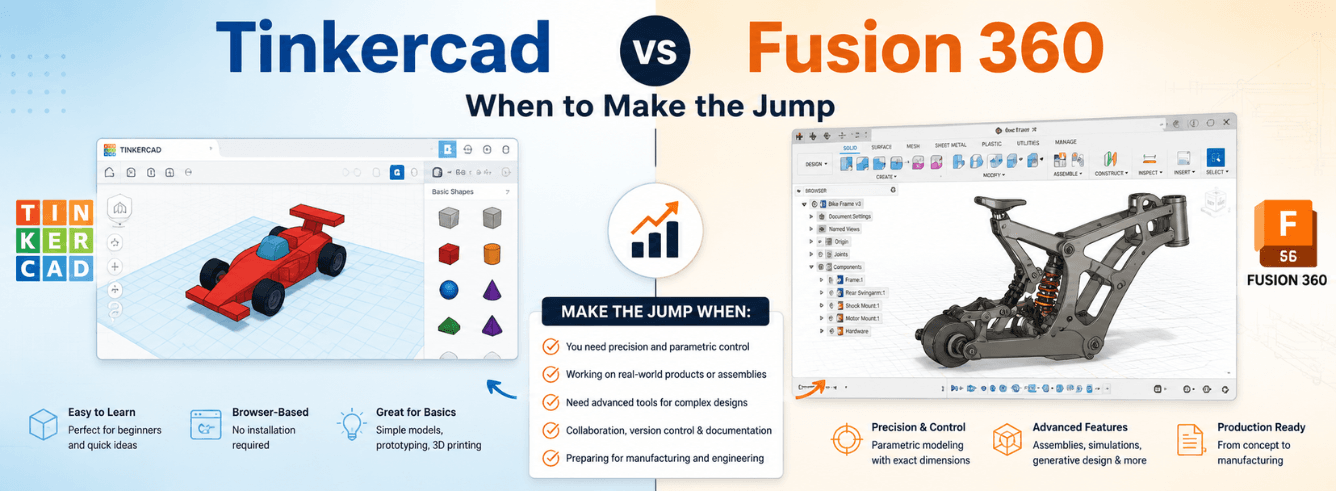
The tinkercad vs fusion 360 question isn’t about which is “better” — it’s about knowing when you’ve outgrown one and need the other. Both are Autodesk tools, which means moving between them is smoother than switching to a completely different ecosystem, but the jump still requires real thought.
- Tinkercad is the best starting point for beginners — browser-based, drag-and-drop, and free. It gets you printing in 30 minutes.
- Fusion 360 is what you graduate to when Tinkercad’s limits start blocking your projects — parametric, precise, and professional-grade.
- Both are free for personal use, so the only cost of trying Fusion 360 is your time learning the interface.
- The upgrade path is intentional — Autodesk built Tinkercad as an entry point and Fusion 360 as the next step. Over 100 million people have started on Tinkercad, and millions have moved up.
The Tinkercad Ceiling
Tinkercad is brilliant at what it does. It runs in your browser, needs no download, and lets you create your first printable STL file in about 30 minutes. Drop in a few shapes, group them, subtract one from another — it’s intuitive in a way that professional CAD tools rarely are.
But that simplicity comes with a hard ceiling. Here’s what starts to break down as your projects get more ambitious:
Precision goes out the window
Tinkercad is a mesh-based modeling tool. You’re essentially pushing virtual clay around. For functional parts that need to fit, align, or move — brackets, gears, enclosures — mesh modeling introduces slop that’s hard to eliminate.
No design history means no easy changes
In Tinkercad, if you need to change a dimension on a part you built three steps ago, you’re often rebuilding the whole thing. There’s no timeline to roll back, no parametric history to edit.
The biggest tell that you’ve hit the Tinkercad ceiling? You’re redoing work you already did just to make one small dimensional change. That’s the moment the tinkercad vs fusion 360 decision becomes real.
Complex shapes become impossible
Tinkercad struggles with precise curves, organic forms that require surfacing, and parts with intersecting geometry. It’s a shape-primitive tool — if you can’t approximate your design with cylinders, boxes, and spheres, you’ll hit a wall.
“There’s nothing wrong with sticking to Tinkercad if you’re comfortable doing so, but you’re going to run into problems if you have loftier design ambitions.”
None of this makes Tinkercad a bad tool — it’s arguably the best starting point for beginner CAD anywhere. But if you’re reading this, you’ve probably already felt these limits.
What Fusion 360 Actually Brings
Fusion 360 is what happens when you take the training wheels off. It’s a professional-grade parametric CAD/CAM/CAE platform that runs in the cloud, meaning you can access your models from anywhere and collaborate without file-version nightmares.
Parametric modeling changes everything
The fundamental difference between Tinkercad and Fusion 360 is how they handle design intent. In Fusion 360, you build with measurements and constraints — and changing one number updates the entire model automatically.
This isn’t a small convenience. For parametric progression in your skills, this is the single biggest step up. Parts designed in Fusion 360 are repeatable, editable, and maintainable in ways that Tinkercad models simply aren’t.
Pro tip: Tinkercad actually has a “Send to Fusion 360” button for circuit designs, and you can export .F3D files directly. The integration is intentional — Autodesk built the upgrade path to be as frictionless as possible.
Integrated CAM and simulation
Fusion 360 isn’t just CAD — it includes CAM (computer-aided manufacturing) for generating toolpaths, CAE for simulation, and even electronics design tools. If you’re designing functional parts, being able to simulate stress or generate G-code without leaving the software is transformative.
Design history and revision control
Every change you make in Fusion 360 is tracked. You can roll back, branch, or explore alternatives without losing your original design. This is the kind of design history and constraints-based workflow that professional engineers rely on — and it’s available on the free personal plan.
The honest catch: Fusion 360 has a learning curve. It’s not something you master in an afternoon. The free personal plan covers hobbyist use, but if you’re selling what you make, you need a paid license.
Tinkercad vs Fusion 360: Head-to-Head
Here’s the side-by-side that cuts through the marketing. This is what the tinkercad vs fusion 360 comparison actually looks like in day-to-day use.
| Feature | Fusion 360 | Tinkercad |
|---|---|---|
| Modeling type | Parametric, history-based | Mesh-based, block assembly |
| Precision for functional parts | High — dimensions and constraints | Low — visual approximation |
| Design history | Full timeline, editable | None — rebuild to change |
| Learning curve | Steep — expect weeks | Gentle — hours to basic proficiency |
| Best for | Functional, mechanical parts | Simple prints, keychains, organizers |
| STL workflow | Full export control | Direct export — quick but limited |
| CAM / simulation | Included on paid tiers | None |
| 3D printing integration | Built-in slicer | Export to any slicer |
| Price | Free (personal) / Paid (commercial) | Fully free |
The Upgrade Path
Autodesk didn’t build Tinkercad and Fusion 360 as separate products — they built them as a skill ladder. Tinkercad is the on-ramp. Fusion 360 is the highway. Here’s how to make the jump without getting overwhelmed.
Step 1: Start with the free personal plan
Fusion 360 has a free personal plan for hobbyists, students, and startups. It includes the core modeling tools, parametric design, and basic manufacturing capabilities. Some advanced features and export options are locked, but for most beginners, the free tier is more than enough.
Cost check: Fusion 360’s commercial license is around $680/seat/year, or from $59/year through Zoftis. But the free personal plan is genuinely free — no trial period, no credit card. Try it before you buy anything.
Step 2: Rebuild a simple Tinkercad project in Fusion
The best way to learn parametric modeling is to take something you already built in Tinkercad and rebuild it in Fusion 360. You already know what the finished part should look like — now you’re learning the new tools without also designing from scratch.
Step 3: Learn constraints and sketches first
Fusion 360 is built on sketches and constraints. Start with a single 2D sketch, apply dimensions and geometric relationships, then extrude it. This is the foundation of everything else. Autodesk has extensive tutorials built into the software and on their blog.
“When students are ready to level up – enter Fusion 360. Autodesk Fusion 360 is the first professional-grade cloud development platform.”
Step 4: Use the built-in learning resources
Fusion 360 includes tutorials, guided workflows, and a community forum. Autodesk also publishes detailed product updates and roadmap information — the July 2026 release includes on-demand configurations, CAM enhancements, and Altium import. The tool is constantly evolving, so the learning never really stops.
When to Stay, When to Go
Not everyone needs to upgrade. The tinkercad vs fusion 360 decision is personal, and a lot depends on what you’re making.
Stay with Tinkercad if:
- You’re making simple prints — keychains, organizers, phone stands, name tags. Tinkercad handles these fine.
- You’re a complete beginner — get comfortable with the basic concepts before adding complexity.
- You want speed over precision — Tinkercad is faster for quick, one-off designs where fit isn’t critical.
- You’re teaching kids or students — Tinkercad is purpose-built for education.
Move to Fusion 360 if:
- Parts need to fit precisely — brackets, enclosures, gears, assemblies.
- You keep rebuilding models — if dimensional changes require starting over, you’ve outgrown Tinkercad.
- You’re designing functional prototypes — Fusion 360’s simulation and CAM tools matter here.
- You see 3D printing as a serious hobby or potential business — learn the professional toolset now rather than later.
Classroom to workshop: Fusion 360 is used by engineers and designers worldwide, while Tinkercad remains the classroom standard. Moving up means learning the tool professionals actually use.
Ready to upgrade? Genuine Fusion 360 starts here.
Get a genuine Autodesk Fusion 360 subscription for Windows from $59/year — delivered to your email within 1–12 hours, with a 30-day money-back guarantee. Commercial license also available for $499/year.
Get Fusion 360 for Windows →Also available: Fusion 360 for Mac
Frequently asked questions
Is Fusion 360 really free for hobbyists?
Yes — Fusion 360 offers a free personal plan for non-commercial use. It includes core modeling tools, parametric design, and basic manufacturing capabilities, though some advanced features and export options are limited compared to the paid version. If you’re selling what you make, you’ll need a commercial license.
What’s the easiest way to move from Tinkercad to Fusion 360?
Tinkercad has a “Send to Fusion 360” button for circuit designs, and you can export your models as .F3D files and import them directly. Beyond the file transfer, the real transition is mental — you’re moving from block modeling to parametric, constraint-based design. Rebuild a simple Tinkercad project in Fusion 360 to learn the workflow.
Can I use both Tinkercad and Fusion 360?
Absolutely. Many makers use Tinkercad for quick concepts and Fusion 360 for final, precise designs. Autodesk has over 100 million Tinkercad users and has built the integration between the two products intentionally. There’s no rule that says you have to pick one.
Is the tinkercad vs fusion 360 choice just about skill level?
Not entirely — it’s about project needs. A skilled designer might still use Tinkercad for quick prototypes where precision doesn’t matter. Conversely, a beginner with a complex functional part might need Fusion 360 from the start. The choice is about what you’re building as much as how skilled you are.
How long does it take to learn Fusion 360?
Expect weeks, not days, to feel comfortable. The fundamentals — sketching, constraints, extrusions — can be learned in a few sessions. But the full toolset, including CAM, simulation, and assembly management, takes months to master. The learning curve is the main downside of Fusion 360.