
Blog
“Object Cannot Be Deleted” in AutoCAD: Why It Happens and How to Fix It

“Object Cannot Be Deleted” in AutoCAD? Here’s Why — and How to Fix It
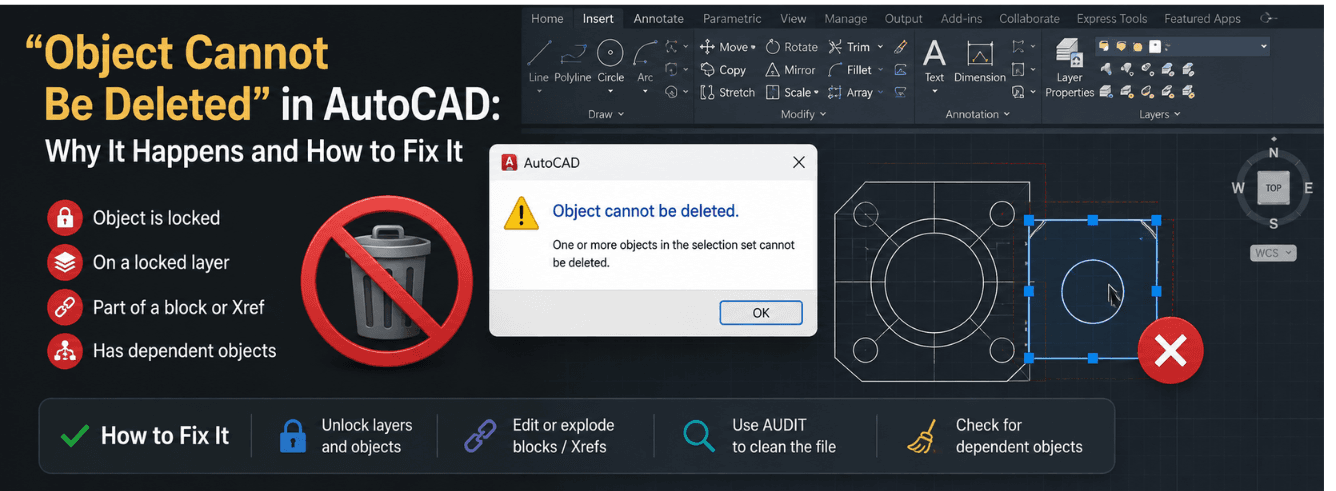
You select an object in AutoCAD, press Delete, and nothing happens. The object cannot be deleted in AutoCAD — and you have no idea why. This guide walks through every possible cause and exactly how to fix it.
- The object cannot be deleted in AutoCAD for six main reasons — we cover every one.
- Start with the quickest fix: check your
PICKFIRSTsystem variable. - Locked layers, frozen layers, Xrefs, blocks, and proxy objects are the usual culprits.
- AutoCAD 2020 and newer includes a “Non-Purgeable Items” tab that tells you exactly what’s blocking deletion.
The Delete key isn’t broken — your drawing is protecting something you haven’t found yet.
Check PICKFIRST — the Most Overlooked Setting
If you can select an object but pressing Delete does nothing, the problem is often simpler than you think. The PICKFIRST system variable controls whether you can select objects before starting a command — or whether you must start the command first[reference:11].
When PICKFIRST is set to 0, you can still select objects, but pressing Delete won’t erase them. The command-line might even warn you that PICKFIRST is turned off[reference:12].
How to Fix It
- Type
PICKFIRSTin the command line and press Enter. - Enter 1 and press Enter.
- Select your object again and press Delete — it should now work[reference:13].
Pro tip: Use SYSVARMONITOR to track PICKFIRST and get notified if it changes unexpectedly[reference:14].
This is the single most common reason an object cannot be deleted in AutoCAD. Always check this first before digging deeper.
Locked Layers: You Can See It, but You Can’t Touch It
AutoCAD lets you lock layers to prevent accidental edits. But if you forget a layer is locked, you’ll wonder why a perfectly selectable object cannot be deleted in AutoCAD.
Objects on locked layers are visible and selectable — but you cannot modify, move, or delete them. The layer is protecting its contents[reference:15].
How to Check and Fix
- Type
LAYERor click the Layer Properties Manager. - Look for the lock icon next to each layer. A closed padlock means the layer is locked.
- Click the padlock to unlock the layer[reference:16].
- Try deleting the object again.
Note: The layer’s current status is displayed in the Layer Properties Manager. A locked layer shows a padlock; an unlocked layer shows an open padlock or no icon.
Frozen Layers: What You Can’t See, You Can’t Delete
Frozen layers are different from locked layers. When a layer is frozen, its objects are completely invisible — you can’t select them, see them, or delete them[reference:17]. But they still exist in the drawing database.
If you’re trying to clean up a drawing and an object cannot be deleted in AutoCAD, it might be sitting on a frozen layer that you’ve forgotten about.
How to Check and Fix
- Open the Layer Properties Manager (
LAYER). - Look for layers with a snowflake icon — that means the layer is frozen.
- Click the snowflake to thaw the layer.
- Once thawed, you can select and delete the object.
Warning: Thawing a frozen layer makes all its objects visible and selectable. If you’re working in a large drawing, this can slow performance temporarily.
Xref-Dependent Objects: When External References Block Deletion
External references (Xrefs) are external DWG files attached to your drawing. Objects that belong to an Xref cannot be deleted from the host drawing — they’re read-only[reference:18].
Sometimes an object cannot be deleted in AutoCAD because it’s actually part of an attached Xref, not part of the current drawing. Other times, the Xref itself won’t detach because it’s nested, on a locked layer, or defined inside a block[reference:19].
How to Check and Fix
- Open the External References palette (
XREF). - Check if the object belongs to an attached Xref. If so, open the source drawing and delete it there.
- If an Xref won’t detach, check that it’s not nested inside another Xref[reference:20].
- Unlock all layers before detaching — locked layers can block detachment[reference:21].
- Use
PURGEto remove unused block definitions that may be referencing the Xref[reference:22].
| Symptom | Solution |
|---|---|
| Object appears to be in current drawing but won’t delete | Check if it’s from an attached Xref — edit in source file |
| Xref won’t detach — “multiple references” error | Find and remove all instances of the Xref in the drawing[reference:23] |
| Xref on a locked layer | Unlock all layers first, then detach[reference:24] |
| Xref defined inside a block | Use PURGE to remove block definitions[reference:25] |
Blocks and Groups: Nested Objects That Won’t Let Go
Blocks and groups are containers. If you select a block and press Delete, the entire block is deleted — but if you try to delete an individual object inside a block, the object cannot be deleted in AutoCAD because it’s part of a larger definition[reference:26].
Similarly, objects used by or nested within an anonymous block cannot be purged until the block definition is resolved[reference:27].
How to Check and Fix
- Check if the object is inside a block. If so, explode the block first (
EXPLODE), then delete the individual object. - Check if the object is part of a group. Use
UNGROUPto dissolve the group. - Use the
PURGEcommand’s “Non-Purgeable Items” tab (AutoCAD 2020+) to see exactly why an item can’t be purged[reference:28]. - The PURGE dialog shows a thumbnail preview and lets you click Select Objects to navigate directly to the blocking object[reference:29].
Pro tip: In AutoCAD 2020 and newer, the PURGE dialog’s “Non-Purgeable Items” tab is your best friend. It tells you exactly what’s blocking deletion — no more guessing[reference:30].
Proxy Objects: Objects Your AutoCAD Doesn’t Understand
This is the most complex reason an object cannot be deleted in AutoCAD. Proxy objects are created by a different application — like Civil 3D, AutoCAD Mechanical, or a third-party add-on — and your version of AutoCAD doesn’t know how to handle them[reference:31].
When you open a drawing created in another application, AutoCAD displays proxy objects as placeholders. You can see them, but you can’t edit or delete them — because your AutoCAD doesn’t have the object definitions[reference:32].
How to Identify Proxy Objects
- Type
PROXYNOTICEin the command line and set the value to 1[reference:33]. - Close and reopen the drawing[reference:34].
- If proxy objects exist, AutoCAD will display a notification when the drawing opens[reference:35].
How to Fix Proxy Object Deletion Issues
- Option 1: Open the drawing in the original application (e.g., Civil 3D, AutoCAD Mechanical) and delete the objects there[reference:36].
- Option 2: Install the appropriate Object Enabler for your version of AutoCAD[reference:37].
- Option 3: Use
WBLOCKwith the OBJECT selection option to create a new drawing that excludes the proxy objects[reference:38]. - Option 4: For AutoCAD Mechanical files, use
EXPORTTOAUTOCADto convert Mechanical objects to plain AutoCAD objects[reference:39]. - Option 5: Use
LAYDELto delete the layer containing the proxy objects — but this only works for certain proxy types[reference:40].
Critical: If proxy objects come from AutoCAD Mechanical, the file must be saved in Mechanical to AutoCAD DWG format before you can edit or delete them in plain AutoCAD[reference:41].
Ready to work with a genuine AutoCAD license?
Get a genuine Autodesk AutoCAD for Windows subscription — 2024–2026 release, 1-year term, delivered by email within 1–12 hours, with a 30-day money-back guarantee. From $59.
Check AutoCAD Price →Also available: AutoCAD for Mac · AutoCAD LT 2027
Frequently Asked Questions
Why does my Delete key not work in AutoCAD?
The most common reason is that PICKFIRST is set to 0. Type PICKFIRST in the command line, set it to 1, and try again[reference:42]. If that doesn’t work, check for locked layers, frozen layers, or proxy objects.
How do I delete an object that is on a locked layer?
Open the Layer Properties Manager (LAYER), find the locked layer (closed padlock icon), click the padlock to unlock it[reference:43], then delete the object. You can re-lock the layer afterward.
What is a proxy object in AutoCAD and why can’t I delete it?
A proxy object is created by a different application (like Civil 3D or AutoCAD Mechanical) that your version of AutoCAD doesn’t fully support[reference:44]. To delete it, open the drawing in the original application, install the appropriate Object Enabler, or use WBLOCK to create a new drawing[reference:45].
How do I find out why an object can’t be purged in AutoCAD?
In AutoCAD 2020 and newer, open the PURGE dialog and click the “Non-Purgeable Items” tab. The Details section explains exactly why the item can’t be purged, and you can click Select Objects to navigate directly to it[reference:46].
Why can’t I delete an object in AutoCAD even though the layer is not locked?
If the layer isn’t locked, check if the object is part of a block or group (explode or ungroup first), part of an Xref (edit in the source drawing), or a proxy object from another application[reference:47]. Also verify that PICKFIRST is set to 1.