
Blog
The Best Way to Import Excel Data into AutoCAD

The Best Way to Import Excel Data into AutoCAD — 5 Methods Compared
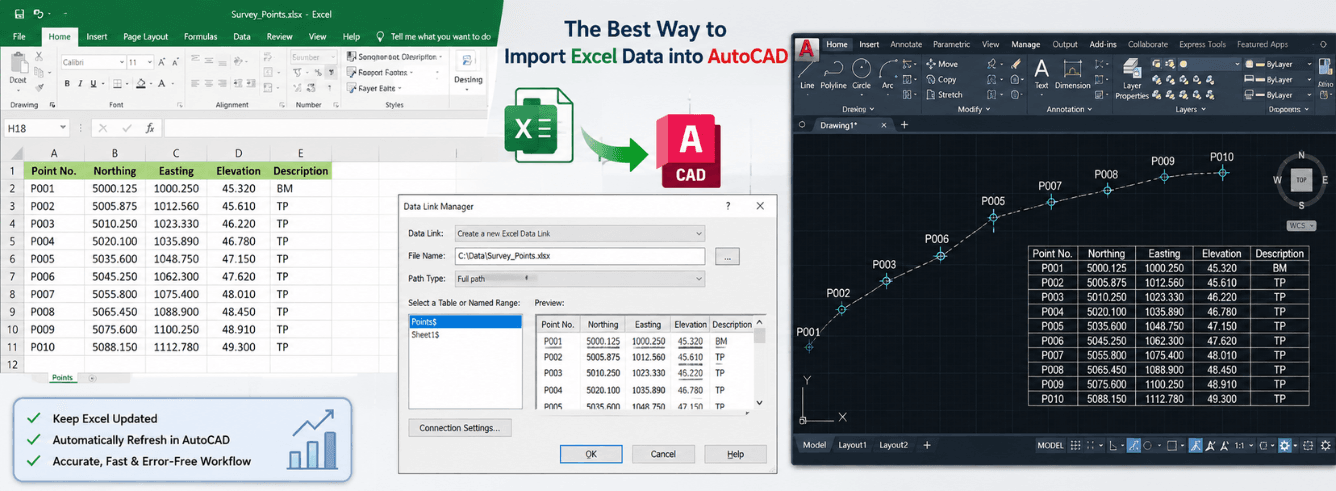
If you’re looking for the best way to import Excel data into AutoCAD, you’ve probably discovered that not all methods are created equal. Some break when you least expect them. Others lock you into static data that never updates. This guide walks through every practical method — so you can pick the right one for your project.
5 ways to import Excel into AutoCAD — at a glance
Before diving into step-by-step instructions, here’s the bird’s-eye view. Each method serves a different purpose. The best way to import Excel data into AutoCAD for a live bill of materials is not the same as the best way for a one-off schedule.
| Method | Best for | Watch out for |
|---|---|---|
| DATALINK | Live data that changes (BOMs, schedules) | Requires Excel file to stay in same location |
| PASTESPEC → AutoCAD Entities | Quick one-off imports, clean CAD tables | Static — no live link to Excel |
| OLE Object | Preserving Excel colors, fonts, borders | Can break with XREFs, increases file size |
| CSV Import | Point data, coordinates, survey data | No formatting, text only |
| VBA / Scripts | Batch processing, repetitive imports | Requires coding knowledge |
Now let’s walk through each method in detail. We’ll start with the one that most professionals consider the best way to import Excel data into AutoCAD for everyday use.
Method 1: DATALINK — the live, updatable table
Introduced in AutoCAD 2008, the Data Link feature is widely regarded as the best way to import Excel data into AutoCAD when your spreadsheet data changes regularly[reference:15]. It creates a live connection between your Excel file and an AutoCAD table.
How to set up a Data Link
- Step 1: Open your Excel file and save it. Note the file path.
- Step 2: In AutoCAD, type
DATALINKin the command line and press Enter[reference:16]. - Step 3: In the Data Link Manager, click Create a new Excel Data Link. Give it a name (e.g., “BOM_Link_2026”)[reference:17].
- Step 4: Browse to your Excel file. Choose the path type — Full Path (absolute), Relative Path, or No Path — depending on how you share drawings[reference:18].
- Step 5: Select which sheet or named range to link. You can link an entire sheet, a named range, or a specific cell range[reference:19][reference:20].
- Step 6: Click OK. Then start the
TABLEcommand, choose From a data link, and select your new link[reference:21]. - Step 7: Pick an insertion point. Your Excel data appears as a formatted AutoCAD table.
Pro tip: Use named ranges in Excel rather than linking entire sheets. This way, if you add rows or columns outside the named range, your AutoCAD table won’t accidentally pull in extra data.
Updating a Data Link
When your Excel data changes, you have two ways to refresh the linked table in AutoCAD[reference:22]:
- Manual: Type
DATALINKUPDATEat the command line, select Update, and choose the data link to refresh[reference:23]. - Automatic (on open): Add
(command "_DATALINKUPDATE" "_U" "_K")to your ACADDOC.LSP file — this refreshes all data links every time you open the drawing[reference:24].
AutoCAD also displays a balloon notification in the bottom-right corner when it detects that the linked Excel file has changed[reference:25].
Heads up: The Data Link method is the best way to import Excel data into AutoCAD for bills of materials, door schedules, and equipment lists — anything that gets revised during a project. But it requires that the Excel file stays in the same location. If you move the file, the link breaks.
Two-way Data Links (writing back to Excel)
Yes — you can write data from AutoCAD tables back to Excel. In the Data Link Manager, expand the Modify Excel Link dialog and check Allow writing to source file[reference:26]. Then use DATALINKUPDATE with the Write option to push changes from AutoCAD back to the spreadsheet.
Method 2: PASTESPEC as AutoCAD Entities
If you need a quick, one-off import and don’t need the Excel link to stay live, pasting as AutoCAD Entities is an excellent alternative. Some users actually prefer this as the best way to import Excel data into AutoCAD for final-stage drawings where data is frozen.
Step-by-step
- In Excel, select the cells you want to import and copy them (Ctrl+C).
- Switch to AutoCAD. Type
PASTESPECin the command line[reference:27]. - In the Paste Special dialog, select AutoCAD Entities[reference:28].
- Click OK and pick an insertion point.
The table comes in as native AutoCAD geometry — text, lines, and cells that you can edit with standard AutoCAD commands. It won’t update when the Excel file changes, but it also won’t break.
Power user setting: The PASTESPECMODE system variable controls whether pasted Excel data inherits your AutoCAD table style or keeps Excel’s formatting[reference:29]. Set it to 1 to use AutoCAD’s table style, or 0 to preserve Excel formatting[reference:30].
Method 3: OLE Object — full Excel formatting
Object Linking and Embedding (OLE) inserts an actual Excel spreadsheet into your drawing. This is the best way to import Excel data into AutoCAD when you absolutely must preserve Excel’s colors, fonts, borders, and formulas exactly as they appear in the spreadsheet[reference:31].
When to use OLE
- You need the table to look exactly like it does in Excel
- You want to double-click the table and edit it in Excel directly
- You’re creating presentation-quality exhibits, not construction documents
When NOT to use OLE
Critical warning: OLE is not the best way to import Excel data into AutoCAD for production drawings. It’s notoriously unreliable with nested external references (XREFs) and has display fidelity issues across different Windows versions[reference:32][reference:33]. Some users report that OLE tables “sometimes work but sometimes don’t”[reference:34]. For professionally issued documents, the risk is rarely worth it.
How to paste as OLE
- Copy cells from Excel (Ctrl+C)
- In AutoCAD, type
PASTESPECand select Microsoft Excel Worksheet (or OLE Object)[reference:35] - Click OK. The spreadsheet appears as an OLE object in your drawing
OLE objects can be resized, but be aware that they significantly increase DWG file size[reference:36]. Also, if you add new rows or columns to the Excel range, OLE won’t automatically reflect them — you’d need to paste a new OLE object[reference:37].
Method 4: CSV import for point data and coordinates
When you’re working with survey data, coordinate lists, or point clouds, CSV import is often the best way to import Excel data into AutoCAD — not for tables, but for geometry.
Importing CSV point data
- Save your Excel sheet as CSV (Comma Separated Values)
- Use the
_MAPIMPORTcommand or a LISP routine like INPUTXYZ to bring in points from the CSV file[reference:38] - Alternatively, use Dynamo scripting to import layers or point data from Excel spreadsheets[reference:39]
CSV import strips all formatting — it’s text-only. If you need formatted tables, use DATALINK or PASTESPEC instead.
Method 5: VBA and scripting for batch imports
For power users who regularly import Excel data into AutoCAD, VBA macros and scripting offer the best way to import Excel data into AutoCAD at scale — automating what would otherwise be repetitive manual work.
VBA approach
- In Excel, press Alt+F11 to open the VBA editor[reference:40]
- Add a reference to the AutoCAD XX.X Object Library[reference:41]
- Write a macro that opens AutoCAD, creates a table, and populates it from Excel ranges
Free utilities
Several free tools can extend AutoCAD’s Excel import capabilities. CADexcel (by Arkance Systems) is a free Excel add-in that imports coordinate lists from XLS files[reference:42]. LookupXLS is another free LISP utility that automates text lookups from Excel[reference:43].
The best way to import Excel data into AutoCAD depends on your data — not on a single “correct” method.
AutoCAD for Mac — what works and what doesn’t
Mac users face a different reality. OLE is a Windows-only technology — it doesn’t exist on macOS[reference:44]. So if you’re on a Mac, OLE is not an option at all.
What works on AutoCAD for Mac
- DATALINK — fully supported. Use the
DATALINKcommand or the Table command with “From a data link”[reference:45]. - CSV import — works via scripting or third-party tools
- PASTESPEC — available, but the “AutoCAD Entities” option may behave differently than on Windows
Mac users: If someone tells you OLE is the best way to import Excel data into AutoCAD, they’re probably on Windows. On a Mac, OLE simply doesn’t exist. Stick with DATALINK — it’s your most reliable option.
For Mac users who need to preserve Excel formatting, the workaround is to paste as a linked OLE object — but since OLE isn’t supported on Mac, you’ll need to rely on DATALINK’s cell formatting options or accept that some formatting will be lost[reference:46].
Troubleshooting common Excel import issues
Even with the best way to import Excel data into AutoCAD, things can go wrong. Here’s how to fix the most common problems.
“Data link not found” or broken link
- The Excel file was moved, renamed, or deleted. Re-establish the link by opening the Data Link Manager and browsing to the new file location[reference:47].
- Use Relative Path when setting up the link if you share drawings with others — this keeps the link intact as long as the Excel file is in the same folder relative to the DWG[reference:48].
Table displays as ### or ####
- Your table columns are too narrow. Select the table, right-click, and choose AutoFit or manually adjust column widths.
- Alternatively, check the Excel source — if the cell contains a formula error, it will display in AutoCAD too.
Formatting looks wrong after PASTESPEC
- Set
PASTESPECMODEto 0 to preserve Excel’s formatting, or 1 to use AutoCAD’s table style[reference:49]. - If you used “AutoCAD Entities,” the table becomes native AutoCAD objects — you can edit them with the TABLE style tools.
OLE table prints as a solid black box
- This is a known display issue. Try changing the OLE plot quality setting in the Plot dialog or use the
OLEFRAMEsystem variable. - Better yet — don’t use OLE for production drawings[reference:50].
Data link won’t update
- Make sure the Excel file is closed before updating — AutoCAD can’t read a file that’s open in Excel[reference:51].
- Try the
DATALINKUPDATEcommand manually[reference:52]. - If all else fails, delete the table and re-insert it from the same data link[reference:53].
Ready to start importing Excel data into AutoCAD?
Get a genuine Autodesk AutoCAD for Windows license from Zoftis — starting at $59 for a 1-year subscription. Delivered within 1–12 hours with a 30-day money-back guarantee.
Shop AutoCAD for Windows →Also available: AutoCAD for Mac — native Apple Silicon build
Frequently asked questions
What is the best way to import Excel data into AutoCAD?
The DATALINK method is the best way to import Excel data into AutoCAD for most professional workflows. It creates a live link between your Excel file and an AutoCAD table, allowing you to update the table when the spreadsheet changes. For one-off imports where you don’t need a live link, PASTESPEC as AutoCAD Entities is faster and cleaner.
Can I import Excel into AutoCAD without losing formatting?
Yes — use the OLE Object method (Windows only) to preserve Excel colors, fonts, borders, and formulas exactly[reference:54]. However, OLE comes with risks: it can break with external references and increases file size[reference:55]. For a safer alternative, use DATALINK with cell formatting options, or adjust the PASTESPECMODE variable when pasting as AutoCAD Entities[reference:56].
How do I update an Excel table in AutoCAD after changes?
If you used DATALINK, type DATALINKUPDATE at the command line and select Update[reference:57]. You can also set up automatic updates on drawing open by adding a line to your ACADDOC.LSP file[reference:58]. If you used OLE with linking enabled, the table updates when you open the drawing — but OLE updates are less reliable.
Can I import Excel data into AutoCAD LT?
Yes. Both DATALINK and PASTESPEC work in AutoCAD LT[reference:59]. OLE also works in AutoCAD LT on Windows. The same Mac limitations apply — OLE is not available on AutoCAD LT for Mac.
What’s the difference between PASTESPEC → AutoCAD Entities and OLE Object?
AutoCAD Entities converts the Excel data into native AutoCAD objects — text, lines, and cells that you can edit with AutoCAD commands. It’s static and won’t update when Excel changes. OLE Object embeds a live Excel spreadsheet in your drawing — you can double-click it to edit in Excel, and it preserves all Excel formatting. But OLE is less reliable in production drawings and doesn’t work on Mac[reference:60].
How do I import multiple Excel sheets into one AutoCAD drawing?
Create a separate data link for each sheet you want to import[reference:61]. Each link can point to a different sheet in the same Excel file. Then insert each as a separate table using the TABLE command with the “From a data link” option. You can also use a single data link and change the sheet reference in the Data Link Manager.
Is there a way to automate Excel import into AutoCAD?
Yes. VBA macros in Excel can automate the import process by referencing the AutoCAD Object Library[reference:62]. For simpler automation, use Dynamo scripting or free LISP utilities like CADexcel and LookupXLS[reference:63][reference:64].