
Blog
How to Change the Background Color in AutoCAD

How to Change the Background Color in AutoCAD: Complete Settings Guide
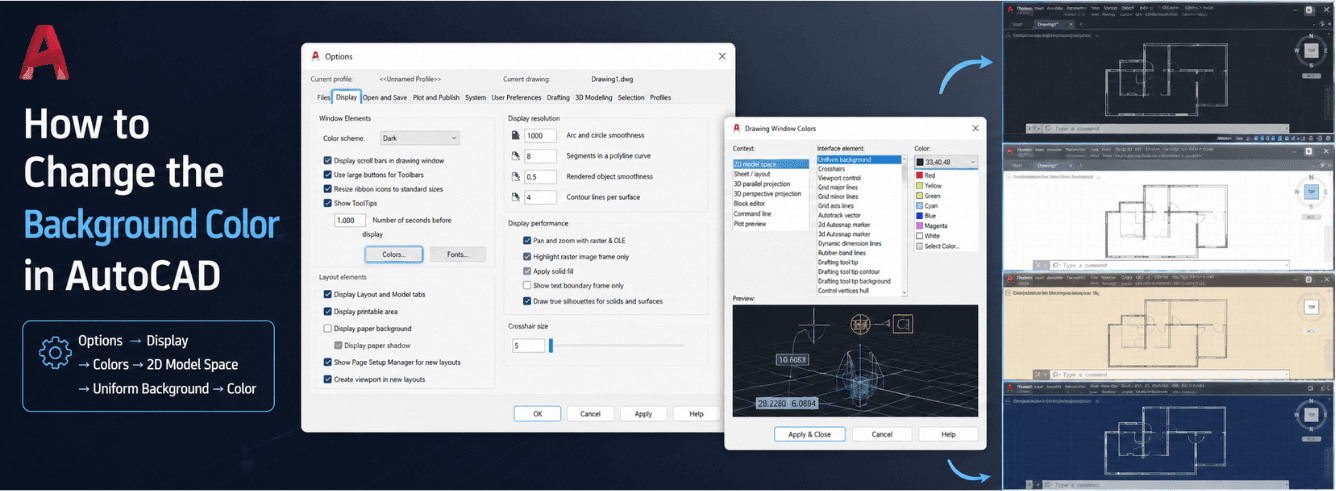
If you’ve ever wondered how to change the background color in AutoCAD, you’re not alone — it’s one of the first settings most new users look for. The default white or black background can strain your eyes depending on your lighting conditions, and plenty of experienced drafters prefer a specific shade that reduces fatigue. Fortunately, the process is straightforward once you know where to look.
- AutoCAD background color is controlled through OPTIONS > Display > Colors — not through visual styles or themes
- You can set different background colors for Model Space and Layout/Paper Space independently
- Changes apply immediately but must be saved to a workspace or profile to persist across sessions
- If the background doesn’t change, check that you’re editing the correct context (2D vs 3D, Model vs Layout)
- Custom RGB or True Color values let you dial in the exact shade that works for your eyes
Why the Background Color Matters More Than You Think
AutoCAD’s default background color has shifted over the years. Older versions typically opened with a black background, while newer releases — including AutoCAD 2026 — often default to white. Neither is objectively better, but the right choice depends on your environment and personal preference. Understanding how to change the background color in AutoCAD is the first step toward creating a drafting environment that doesn’t fight against you.
A white background works well in bright offices with lots of natural light. Black or dark gray backgrounds reduce glare and eye strain in dimmer settings, and many drafters swear by them for long sessions. The real question isn’t which is “correct” — it’s which lets you work comfortably for hours without fatigue. Once you know how to change the background color in AutoCAD, you can test both and settle on the right one.
Note: AutoCAD’s color theme (dark or light interface) is separate from the drawing window background. You can run a dark interface with a white drawing area, or vice versa — they’re controlled independently.
Beyond comfort, background color affects how your linework and colors appear. A dark background makes light-colored lines pop, while a light background gives a better preview of how drawings will look when printed on white paper. Understanding this tradeoff helps you choose the right setting for your workflow. The versatility of how to change the background color in AutoCAD means you can adapt instantly to different project requirements.
Who changes this setting most often?
- New AutoCAD users — coming from other CAD software with different default backgrounds
- Drafters switching between offices — adapting to different monitor setups and lighting
- Users sharing drawings — toggling between black and white for presentations or print previews
- Anyone experiencing eye strain — fine-tuning the drafting environment for comfort
The good news? Once you know how to change the background color in AutoCAD, you can switch back and forth in seconds. It’s one of those settings that makes a huge difference in daily comfort, yet it’s tucked away in a menu that many users never explore.
The Quick Way: Change AutoCAD Background Color in Under a Minute
Here’s the fastest method to change the background color in AutoCAD, whether you’re using Model Space or Layout. These steps work across AutoCAD 2024, 2025, 2026, and 2027. If you want to master how to change the background color in AutoCAD, this is the core workflow you’ll use every time.
Step-by-step instructions
- Open the Options dialog. Type OPTIONS in the command line and press Enter. Alternatively, go to Tools > Options from the menu bar, or right-click anywhere in the drawing area and select Options.
- Navigate to the Display tab. In the Options dialog box, click the Display tab at the top.
- Click the Colors button. Look for the Colors… button in the Window Elements section (or similar location depending on your version). This opens the Drawing Window Colors dialog box.
- Select the right context. In the Context list on the left, choose where you want to change the background:
- 2D model space — for your main drafting area
- 3D parallel projection or 3D perspective projection — for 3D views
- Sheet / Layout — for paper space layouts
- Block editor — for editing blocks in place
- Choose the interface element. In the Interface element list, select Uniform background. This controls the main drawing area background.
- Pick your color. In the Color dropdown, select your preferred color. Common choices include Black, White, or Gray. For custom colors, click Select Color at the bottom of the list to access the full color palette or enter RGB values.
- Apply and close. Click Apply & Close to save your change. The background updates immediately.
Pro tip: You can also type OP in the command line — it’s a shortcut for OPTIONS. For an even faster toggle between black and white, some users install plugins like BackGround Black/White that let you switch with a single command.
That’s the complete method for how to change the background color in AutoCAD. The entire process takes about 30 seconds once you know the steps. But there’s a catch — Model Space and Layout backgrounds are controlled separately, so you might need to repeat this for each context. Mastering how to change the background color in AutoCAD also means knowing where these separate settings live.
Model Space vs. Layout Background — Two Different Settings
One of the most common points of confusion is that AutoCAD treats Model Space and Layout (Paper Space) backgrounds independently. Changing one doesn’t automatically change the other. This is by design — you might want a dark background for drafting in Model Space but a white or light gray background in Layout to simulate how your drawing will look on paper. Understanding how to change the background color in AutoCAD requires acknowledging these two separate contexts.
Here’s a quick comparison to help you understand the difference:
| Feature | Model Space | Layout / Paper Space |
|---|---|---|
| Default background | Black (older versions) or White (newer) | White (simulates paper) |
| Context in Colors dialog | 2D model space | Sheet / Layout |
| Interface element | Uniform background | Uniform background |
| Best for | Drafting, editing, detailed work | Print preview, presentation, plotting |
| Environment variable | “Background” | “Layout background” |
To change the layout background specifically, follow the same steps but select Sheet / Layout in the Context list instead of 2D model space. You can set the layout background to black, white, or any custom color — just like Model Space. Remember, the process for how to change the background color in AutoCAD is identical in both contexts; you just pick a different dropdown option.
Note: Some users prefer to set both Model Space and Layout backgrounds to the same color for consistency. Others intentionally keep them different — dark for drafting, light for print preview. There’s no wrong answer; it’s about what works for your workflow.
Changing the Background Color for 3D Views in AutoCAD
If you work in three dimensions, you’ll be glad to know that how to change the background color in AutoCAD extends to 3D viewports as well. AutoCAD treats 3D contexts separately from 2D model space, which gives you even more flexibility to optimize your drafting environment.
In the Drawing Window Colors dialog, you’ll notice 3D parallel projection and 3D perspective projection listed under the Context dropdown. These control the background for 3D visual styles like Conceptual, Realistic, and Shaded. If you’ve changed the 2D background but your 3D view still looks off, you haven’t finished learning how to change the background color in AutoCAD — you just need to switch contexts.
Many users set their 3D background to a dark gradient or a subtle gray to better highlight complex geometry. The Uniform background option works here too, but you can also experiment with gradients if your version supports it. The same quick steps apply: OPTIONS > Display > Colors > select your 3D context > Uniform background > pick a color.
Pro tip: For 3D modeling, try a mid-gray background (RGB 128,128,128). It provides a neutral base that makes both dark and light objects stand out clearly, reducing the need to constantly adjust how to change the background color in AutoCAD for different models.
What If the Background Color Doesn’t Change?
Sometimes the background color doesn’t change even after following the steps. Here are the most common culprits and how to fix them. If you’re stuck on how to change the background color in AutoCAD, these solutions will usually get you unstuck.
You changed the wrong context
If you’re in Model Space but changed the background for Sheet/Layout (or vice versa), nothing will happen. Go back to the Colors dialog and make sure you’ve selected the correct Context for your current workspace.
Visual styles are overriding the background
AutoCAD’s visual styles (like Conceptual, Realistic, or Shaded) can override your background color settings. The background color in the drawing area is controlled through the Options dialog, not through visual style settings. If you’re in a visual style that doesn’t display the uniform background, switch to 2D Wireframe or Wireframe visual style to see your background change. This is a common pitfall when learning how to change the background color in AutoCAD for the first time.
Heads up: In AutoCAD 2027, the Realistic (Fast) visual style is now on by default. If you’re on the newest version and the background isn’t behaving as expected, check which visual style is active.
The change didn’t save
If you close and reopen AutoCAD and the background has reverted, your settings weren’t saved properly. You need to save your workspace or export your profile — more on this in the next section. A solid understanding of how to change the background color in AutoCAD includes knowing how to make it permanent.
You’re in a viewport
Background color changes apply to the drawing area itself, not to individual viewports. If you’re inside a layout viewport, the background you see is the paper background (Layout setting), not the Model Space background. Exit the viewport (double-click outside it) to change the layout background, or enter the viewport to see the Model Space background within it.
Quick fix: If you’re in a layout and the background isn’t changing, double-check that you’re modifying Sheet/Layout > Uniform background, not 2D model space. Many users make this mistake and spend way too long troubleshooting how to change the background color in AutoCAD.
Saving Your Settings So They Stick
Once you’ve figured out how to change the background color in AutoCAD, you’ll want those changes to persist. Here’s how to lock them in.
Save your workspace
AutoCAD workspaces store your interface layout, including color settings. After changing the background:
- Click the Workspace Switching button in the status bar (bottom-right of the AutoCAD window)
- Select Save Current As…
- Name your workspace (e.g., “My Drafting Setup”)
- Click Save
Export your profile
For even more reliability — especially if you work across multiple machines — export your AutoCAD profile:
- Open OPTIONS again
- Go to the Profiles tab
- Select your current profile and click Export…
- Save the .arg file somewhere you can find it
Importing this profile on another machine restores all your settings, including background colors. This is the professional-grade approach to how to change the background color in AutoCAD across multiple workstations.
Environment variables for advanced users
For those comfortable with LISP or the command line, AutoCAD stores background colors in environment variables. You can view or change them using (getenv “Background”) and (setenv “Background” “newvalue”). The layout background uses “Layout background” (including the space). Values are typically stored as numeric color codes — for example, “0” for black.
For power users: You can create a simple LISP routine to toggle between black and white backgrounds with a single command — handy if you switch frequently. This is the next level of mastering how to change the background color in AutoCAD.
Beyond Background: Other Display Settings Worth Tweaking
Once you’ve mastered how to change the background color in AutoCAD, you might want to explore related display settings that improve your drafting experience even further. Let’s look at a few that pair perfectly with your new background.
Crosshair color
When you change the background to white, the default black crosshair can be hard to see. Conversely, a white crosshair on a black background disappears. In the same Drawing Window Colors dialog, select 2D model space > Crosshair and pick a contrasting color. Bright green, cyan, or yellow are popular choices because they stand out against most backgrounds.
Grid color
The grid dots or lines should also contrast with your background. Select Grid lines or Grid dots in the Interface element list and choose a visible but not distracting color.
Selection and preview colors
AutoCAD highlights selected objects and objects you hover over. These colors can be customized too — look for Selection and Preview in the Interface element list. Adjusting these can make your drafting environment feel more intuitive.
Color theme (dark vs. light interface)
AutoCAD’s interface theme — dark or light — is separate from the drawing background. You’ll find this in OPTIONS > Display > Color theme. A dark interface with a white drawing area, or a light interface with a black drawing area — mix and match to find what’s easiest on your eyes.
Try this: Set your Model Space background to a dark gray (like RGB 50,50,50) instead of pure black. It reduces contrast fatigue while keeping lines visible. Many experienced drafters prefer this over pure black or white, and it’s a great follow-up to learning how to change the background color in AutoCAD.
Your drafting environment should work for you — not the other way around. Change the background, tweak the colors, and make AutoCAD feel like home.
Ready to start drafting in AutoCAD?
Genuine Autodesk AutoCAD for Windows — 2024–2026 release. 1 Year Subscription, 30 Days Refund. Delivered to your email within 1–12 hours with activation steps. From $59 (regularly $99) — save 40%.
Get AutoCAD for Windows →Also available: AutoCAD for Mac — native Apple Silicon build
Frequently asked questions
How do I change the background color in AutoCAD from black to white?
Type OPTIONS in the command line, go to the Display tab, click Colors, select 2D model space and Uniform background, then choose White from the Color dropdown. Click Apply & Close to save. The same steps work for changing from white to black — just select Black instead. This is the standard answer to how to change the background color in AutoCAD for most users.
Why did my AutoCAD background change to white and how do I change it back?
Newer versions of AutoCAD (including 2026) default to a white background. To change it back to black or any other color, follow the steps above — type OPTIONS, go to Display > Colors, select 2D model space > Uniform background, and choose your preferred color. If the background changed unexpectedly, you might have accidentally switched visual styles or imported a different workspace. Knowing how to change the background color in AutoCAD helps you fix this in seconds.
How do I change the background color in AutoCAD layout (paper space)?
Layout backgrounds are controlled separately from Model Space. Follow the same OPTIONS > Display > Colors path, but select Sheet / Layout in the Context list instead of 2D model space. Then choose Uniform background and pick your color. The layout background simulates paper, so many users keep it white or light gray. This distinction is crucial when learning how to change the background color in AutoCAD for presentations.
Can I change AutoCAD background color using a command or shortcut?
Yes. Type OP as a shortcut for OPTIONS. For a faster toggle, you can install the BackGround Black/White plugin from the Autodesk App Store, which lets you switch between black and white with a single command. Advanced users can also use LISP routines or environment variables like (setenv “Background” “0”) for black. These shortcuts make how to change the background color in AutoCAD even quicker.
Why isn’t my AutoCAD background color changing when I use visual styles?
Visual styles like Conceptual, Realistic, or Shaded can override the uniform background setting. To see your chosen background color, switch to 2D Wireframe or Wireframe visual style. The background color in the drawing area is controlled through OPTIONS > Display > Colors, not through visual style settings. This is a frequent gotcha when figuring out how to change the background color in AutoCAD for the first time.