
Blog
Fusion 360 System Requirements: What Your Machine Needs

Fusion 360 Minimum Requirements — What Your PC Actually Needs
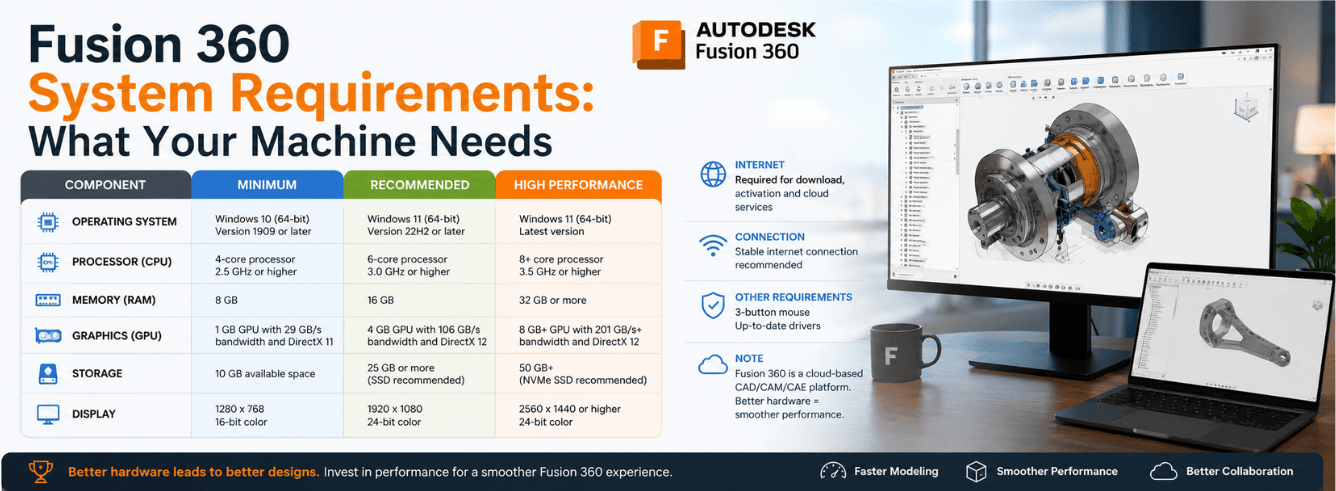
Before you commit to a Fusion 360 subscription, it’s worth checking whether your machine meets the fusion 360 minimum requirements — or whether you’ll need an upgrade to work comfortably on real projects.
- Minimum doesn’t mean usable: Bare-bones specs let Fusion launch — but complex projects will test your patience.
- Core count vs clock speed: Toolpath generation and simulation spread across multiple cores. The interface and modeling benefit from faster single-thread performance.
- Internet matters more than you think: Fusion’s cloud architecture needs a solid connection — 25 Mbps download is the realistic baseline for smooth operation.
- Apple Silicon delivers real gains: Native M-series support gives about 30% faster modeling and nearly 50% better battery life versus Intel/Rosetta 2.
- Certified vs consumer GPUs: Hobbyists can use RTX 4000 or RX 7000 cards. Professionals should look at Quadro or Radeon Pro hardware.
Why the official specs don’t tell the whole story
Autodesk publishes both minimum and recommended hardware specs for Fusion 360. The distinction matters more than most people realize.
The fusion 360 minimum requirements are designed for legacy hardware and ultraportable devices. They’re fine for learning the software or working with simple STL files. But if your workflow involves large assemblies, complex parametric histories, or critical toolpath calculations, those bare-bones specs will become a bottleneck.
Think of the minimum spec as “it will launch.” The recommended spec is “it will perform.” If you’re paying for a commercial subscription, you want the latter.
Autodesk itself notes that devices meeting only the baseline may struggle to navigate hundred-component assemblies or long parametric design histories.
Processor needs: cores vs clock speed
The baseline CPU spec asks for a 64-bit processor with two performance cores, four threads, and a 3GHz+ turbo clock — something like an Intel Core i3 or AMD Ryzen 3.
Here’s the nuance: different parts of Fusion use your processor differently.
What benefits from more cores
Toolpath generation and simulation are multi-threaded operations. They spread across available cores, so more cores mean faster calculations.
What benefits from faster single-core speed
The user interface and many modeling operations are single-threaded. A faster clock speed means smoother orbiting, panning, and selection — the things you do constantly.
| Workload type | CPU priority | Why it matters |
|---|---|---|
| UI responsiveness | Single-core speed | Every click, orbit, and selection relies on fast single-thread performance |
| Toolpath generation | Core count | CAM operations distribute across all available cores |
| Simulation | Core count | FEA and motion studies benefit from parallel processing |
| Parametric rebuilds | Mixed | Some operations serialize; others parallelize |
What we recommend: Aim for eight performance cores and 16 threads — Intel Core i7 or AMD Ryzen 7 territory. Make sure the base clock sits at 3GHz+, not just the turbo speed.
Windows users should note: Intel’s newer processors mix performance (P) and efficiency (E) cores. Windows 11 handles this scheduling better than Windows 10. On Windows 10, many multi-threaded operations may run only on slower E-cores.
Graphics cards: certified vs consumer
The baseline GPU spec requires 1GB of memory and DirectX 11 support. Integrated graphics like Intel UHD, Iris Pro, and AMD Radeon RX Vega meet this minimum.
But “meets” and “works well” are different things.
The certified hardware question
Autodesk maintains a Certified Graphics Hardware list. Cards on this list have been tested by card vendors or product teams, with results reviewed by Autodesk.
Cards not on the list may still work — and often do — but Autodesk hasn’t validated them.
| Usage type | Recommended hardware | Minimum hardware |
|---|---|---|
| Professional work | Certified: AMD Radeon Pro WX, Intel Arc Pro, Nvidia Quadro with 8GB+ VRAM | Consumer cards (not validated) |
| Hobbyist work | Consumer: RTX 4000 series, RX 7000 series, Intel Arc A700 | Integrated: Intel UHD, Iris Pro, AMD Vega |
For 4K displays with 200% scaling, you’ll want 8GB+ of dedicated VRAM. Integrated graphics will struggle with high-resolution canvas rendering.
One piece of good news: a top-tier card like the RTX 4090 is overkill for Fusion. An RTX 4060 or equivalent handles the workload beautifully.
Apple Silicon users: M-series chips deliver strong integrated graphics performance natively, with the M1 Max and newer explicitly recommended for professional work.
Memory and storage: common mistakes
Windows users need 8GB RAM minimum. macOS users need 4GB. But those numbers won’t serve you well in practice.
Fusion chews through memory when working with large assemblies or multiple open projects. The recommended spec jumps to 32GB+ for Windows and 16GB+ for macOS.
| Component | Minimum | Recommended |
|---|---|---|
| Windows RAM | 8GB | 32GB+ |
| macOS RAM | 4GB | 16GB+ |
| Storage | 8.5GB HDD | 15GB+ SSD |
Critical: The 8.5GB storage requirement is for installation only. Active projects and cache files need much more space. The recommended spec suggests 15GB+ for installation and cached data — but heavy users should plan for 100GB+ on an SSD.
An SSD makes a dramatic difference. Fusion loads assets, assemblies, and toolpaths from storage constantly. An SSD transforms the experience; a hard drive creates wait times that kill productivity.
Can you run Fusion on a laptop?
Laptops are increasingly popular for CAD work. The fusion 360 laptop requirements aren’t fundamentally different from desktop specs — but the practical experience can vary widely.
What to watch for in a Fusion laptop
- Thermal throttling: Laptops often reduce CPU speed under sustained load. A machine that meets the baseline on paper may throttle to unusable speeds during long toolpath calculations.
- Mobile CPU performance: A laptop Core i7 isn’t the same as a desktop Core i7. Look for “H” (high-performance) series Intel chips or AMD’s HS/HX series.
- Dedicated vs integrated GPU: Some laptops have dedicated graphics that handle Fusion well. Others rely on integrated graphics that barely clear the bar.
- Soldered RAM: Many modern laptops don’t let you upgrade memory later. If you buy one with 8GB, you’re stuck with it. Start with 32GB if possible.
Our take: A $1,500 laptop with good cooling and a decent GPU can outperform a $1,000 desktop for many Fusion workflows, especially if you value portability. But don’t try to run Fusion on a sub-$800 consumer laptop — the experience won’t be pleasant.
Apple Silicon performance and battery life
Fusion 360 now runs natively on Apple Silicon (M1, M2, M3, M4 series). This matters more than the minimum spec sheet suggests.
Autodesk’s internal testing shows modeling and assembly tasks are roughly 30% faster on Apple Silicon compared to running through Rosetta 2 on Intel hardware. Battery life gains are even more dramatic — Fusion consumes nearly 50% less power when running native ARM64 code.
In one battery test, Fusion running via Rosetta 2 consumed 77% of battery, leaving just 23%. The native version consumed only 40%, leaving 60% battery remaining.
You’ll still need Rosetta 2 installed for some backend processes and add-ins, but the main application runs natively. The official requirements don’t fully capture the performance gap between Intel and Apple Silicon machines.
macOS users should note that OpenCore Legacy Patcher is not supported — you need a natively supported macOS version.
The overlooked internet requirement
Fusion 360 is cloud-connected software. This isn’t just for license checks — projects store in the cloud, and many features depend on connectivity.
The baseline spec asks for 5 Mbps download and 1 Mbps upload. The recommended spec calls for 25+ Mbps download and 5+ Mbps upload.
Warning: If your connection dips below 5 Mbps, Fusion will feel sluggish. Latency matters too — and if you’re working on large files, faster upload speeds help with cloud saves and collaboration.
Official system requirements (Windows & macOS)
Here’s the complete breakdown of fusion 360 minimum requirements and recommended specs, straight from Autodesk.
Windows requirements
| Component | Minimum | Recommended |
|---|---|---|
| Operating System | Windows 11, 23H2 (Build 22631 or newer) | Windows 11, 23H2 or newer |
| CPU | 2 performance cores, 4 threads, 3GHz+ turbo — Intel Core i3 or AMD Ryzen 3 | 8+ performance cores, 16+ threads, 3GHz+ base — Intel Core i7 or AMD Ryzen 7 |
| RAM | 8GB | 32GB+ |
| GPU | 1GB memory, DirectX 11, integrated graphics acceptable | 8GB+ memory, dedicated graphics (certified for professional use) |
| Display | 1366×768 @60Hz | 3840×2160 (4K) @60Hz |
| Storage | 8.5GB HDD | 15GB+ SSD |
| Internet | 5 Mbps down, 1 Mbps up | 25+ Mbps down, 5+ Mbps up |
macOS requirements
| Component | Minimum | Recommended |
|---|---|---|
| Operating System | macOS 14 Sonoma | macOS 15.7 Sequoia or newer |
| CPU | 1.4GHz dual-core Intel Core i5 or Apple Silicon M1 | Apple Silicon M1 Max or newer |
| RAM | 4GB | 16GB+ |
| GPU | Intel HD Graphics 5000 or Apple M1 | Apple Silicon M1 Max or newer |
| Display | 1366×768 @60Hz | 3480×2160 (4K) @60Hz |
| Storage | 8.5GB HDD | 15GB+ SSD |
| Internet | 5 Mbps down, 1 Mbps up | 25+ Mbps down, 5+ Mbps up |
Windows users: install the Media Feature Pack before installing Fusion. ARM64 devices can run Fusion on Windows 11 using XtaJIT64/Prism emulation, but this hasn’t completed Autodesk certification.
Ready for Fusion 360? Make sure your hardware is up to the task.
Get a genuine Autodesk Fusion 360 commercial license for Windows — includes CAD, CAM, CAE, and PCB tools. Starting from $59/year with a 30-day money-back guarantee. Delivered by email within 1–12 hours.
Check Fusion 360 price →Also available: Fusion 360 for Mac — native Apple Silicon build
Frequently asked questions
What are the baseline specs for Fusion 360 on Windows?
The fusion 360 minimum requirements for Windows are: Windows 11 23H2, a 2-core x86-64 processor at 3GHz+ turbo, 8GB RAM, DirectX 11 graphics with 1GB VRAM, a 1366×768 display, 8.5GB storage, and 5 Mbps internet. But these are bare minimums — the recommended specs are much higher.
Will a laptop meeting the baseline run Fusion smoothly?
It will launch and handle simple projects. But laptop thermal throttling, mobile CPU limitations, and integrated graphics can make complex work frustrating. Look for an H-series CPU, dedicated GPU, and 32GB RAM.
Is 8GB RAM sufficient for Fusion 360?
8GB meets the minimum, but 32GB is recommended. If you work with complex assemblies or keep multiple projects open, 8GB will feel sluggish. macOS users should start with 16GB.
Can integrated graphics handle Fusion 360?
Yes, integrated graphics like Intel UHD, Iris Pro, and AMD Radeon RX Vega meet the baseline for basic use. But for 4K displays, complex assemblies, or professional workflows, you need 8GB+ dedicated graphics.
What internet speed do I actually need?
The minimum calls for 5 Mbps download and 1 Mbps upload. But 25+ Mbps download and 5+ Mbps upload are recommended for a smooth experience.
Is Fusion 360 native on Apple Silicon?
Yes. Fusion runs natively on Apple Silicon (M1, M2, M3, M4). Modeling tasks are around 30% faster, and battery life improves by nearly 50% compared to Intel/Rosetta 2.