
Blog
AutoCAD Toolbar or Ribbon Missing? How to Get It Back

AutoCAD Toolbar Missing? Here’s How to Get It Back
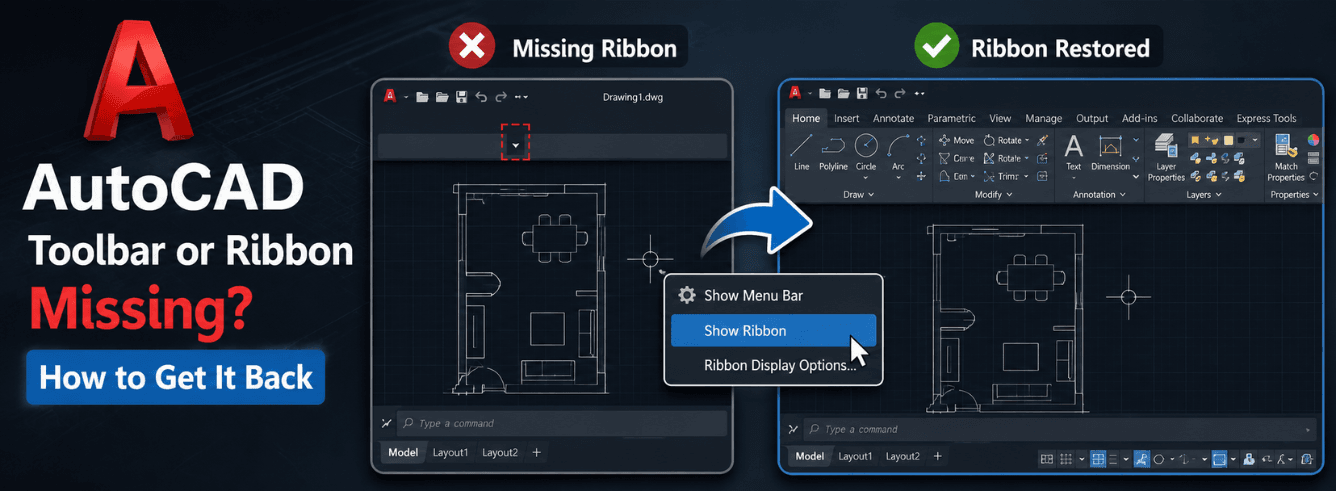
If your AutoCAD toolbar missing issue has brought your workflow to a halt, you’re not alone — and the fix is usually faster than you’d expect.
- Most toolbar disappearances are accidental toggles, not software corruption — fixable in seconds.
- If the command line itself is missing, Ctrl+9 (Windows) or Cmd+3 (Mac) restores it instantly.
- When toolbars float off-screen due to monitor changes, the -TOOLBAR command brings them back to (0,0).
- If nothing works, the Reset Settings to Default tool (Start menu) restores everything without reinstalling.
Why Your AutoCAD Toolbar Disappeared
AutoCAD’s interface can vanish for several reasons, and knowing the cause saves you from trying the wrong fix. Understanding the root of your autocad toolbar missing problem is the first step to getting back to work.
Most cases fall into one of these categories:
- Accidental toggles — You (or someone else) closed the ribbon, hid the command line, or turned on Clean Screen mode without realising it.
- Workspace changes — Switching workspaces or loading a custom profile that doesn’t include your preferred toolbars.
- Multi-monitor issues — Toolbars and palettes that were on a second monitor that’s no longer connected, leaving them stranded off-screen.
- Corrupted or missing CUIX file — The customisation file that loads your toolbars and menus is damaged or can’t be found.
- AutoCAD updates or incomplete installation — A patch that didn’t apply cleanly or installation files that didn’t fully copy.
Each cause has a distinct solution. The guide below is ordered from the most common and easiest fixes to the more involved ones — so start at the top and work down.
Quick Fixes — What to Try First
The 60-Second Recovery Sequence
If your autocad toolbar missing symptoms appeared suddenly and you haven’t changed any settings, this sequence usually fixes it immediately:
- Press Ctrl+9 to ensure the command line is visible. If the command line appears, you’re good to proceed.
- Type RIBBON and press Enter. This turns the ribbon back on if it was closed.
- Type MENUBAR, press Enter, and set the value to 1. This restores the classic menu bar.
- Press Ctrl+0 to toggle Clean Screen mode off (the status bar also shows a Clean Screen icon).
Why this order works: The command line is your control centre for the rest of the fixes. If it’s hidden, none of the other commands will work. The Clean Screen toggle (Ctrl+0) is often mistaken for a toolbar loss because it hides everything except the drawing canvas.
Restore the Command Line First (Ctrl+9)
A missing command line is one of the most common complaints alongside a autocad toolbar missing problem. Without the command line, you can’t type RIBBON, MENUBAR, or any other recovery command. The restore method varies by operating system [citation:8]:
- Windows: Press Ctrl+9 to toggle the command line on and off.
- Mac: Press Cmd+3.
- You can also type COMMANDLINE directly anywhere on the drawing canvas if you can type at all — it brings the command line back without needing a menu.
- If the command line is missing but Dynamic Input (the on-screen cursor text) is still working, press F12 to toggle Dynamic Input — this sometimes restores command line visibility as well [citation:8].
Once the command line is back, type RIBBON and MENUBAR=1 in sequence. In most cases, this completely resolves the autocad toolbar missing issue in under two minutes.
Unlock the Interface Before Moving Anything
If you can see the ribbon or toolbar but can’t click or drag it, the interface is locked. Type LOCKUI and set the value to 0 to unlock everything. This is especially important before dragging floating toolbars or palettes back into place [citation:1].
Check Clean Screen and Status Bar Settings
Clean Screen mode (Ctrl+0) hides the ribbon, toolbars, palettes, and even the status bar to give you maximum drawing space. It’s a frequent culprit. Look for the Clean Screen icon in the lower-right corner of the status bar — it looks like a small monitor with arrows pointing outward. If it’s lit, click it to exit Clean Screen mode [citation:2].
The status bar itself can also be hidden. Type STATUSBAR and set the value to 1 to make it reappear [citation:1].
Switch Workspaces Back and Forth
Sometimes the easiest fix for a autocad toolbar missing problem is switching to a different workspace and then switching back. Click the workspace gear icon on the status bar, select a different workspace (e.g., “3D Modeling” if you use “Drafting & Annotation”), and then click back to your preferred workspace. This refreshes the interface without changing any of your saved settings [citation:1].
The Hidden Palettes Commands
AutoCAD includes two commands specifically for hiding and showing all palettes at once. If your autocad toolbar missing issue affects multiple panels simultaneously, try [citation:2]:
- Type HIDEPALETTES — hides all palettes and palettes-type windows.
- Type SHOWPALETTES — restores all hidden palettes.
90% of “toolbar missing” cases are solved by one of these quick fixes. If you’re still stuck, the problem runs deeper.
| Symptom | Most Likely Cause | Quick Command |
|---|---|---|
| Ribbon missing | Closed accidentally | RIBBON |
| Command line gone | Hidden via Ctrl+9 | Ctrl+9 or COMMANDLINE |
| Everything hidden except drawing | Clean Screen mode (Ctrl+0) | Ctrl+0 or Clean Screen icon |
| Menu bar missing | MENUBAR set to 0 | MENUBAR=1 |
| Status bar missing | STATUSBAR set to 0 | STATUSBAR=1 |
| Toolbar visible but can’t move | Interface locked | LOCKUI=0 |
| All palettes missing | HIDEPALETTES active | SHOWPALETTES |
Workspace and CUI Recovery Methods
Adding Toolbars via CUI
If the quick fixes didn’t restore specific toolbars, you need to add them to your workspace through the CUI (Customise User Interface) editor. This is the correct method for recovering toolbars that aren’t part of the workspace you’re using [citation:4][citation:6]:
- Type CUI in the command line and press Enter.
- In the Customise User Interface window, expand Workspaces in the left panel.
- Select your current workspace (e.g., “Drafting & Annotation” or “3D Modeling”).
- Click the Customise Workspace button in the upper-right.
- In the left panel, expand Toolbars. You’ll see a list of every available toolbar.
- Check the boxes next to any toolbar you want to appear in your workspace.
- You can also add Menus, Ribbon Tabs, and Palettes using the same method.
- Click Done when you’ve selected everything, then click OK to close the CUI editor.
Pro tip: If you’re using AutoCAD LT, the CUIX file is ACADLT.CUIX rather than ACAD.CUIX. For other versions, look for ACA.CUIX (Architecture), ACADM.CUIX (Mechanical), or C3D.CUIX (Civil 3D) [citation:5].
Classic Workspace Recovery
AutoCAD 2015 was the last version to include the classic toolbar-based workspace by default. For newer versions, you can still restore a classic workspace [citation:6]:
- From the Quick Access Toolbar, click the dropdown arrow and select Show Menu Bar.
- From the Tools menu, go to Toolbars > AutoCAD.
- Select each toolbar you want to display and dock it around the drawing area.
- Once all desired toolbars are visible, go to Tools > Workspaces > Save Current As and name your new workspace.
Note: The classic workspace in AutoCAD for Mac works differently because the interface isn’t based on the same workspace structure as Windows. Mac users should focus on the CUI and workspace switching methods instead [citation:6].
Reload the CUIX File Without Resetting Everything
If toolbars are missing but you know the CUIX file is intact, reloading it can fix the issue without losing your customisations [citation:7]:
- Type CUILOAD and press Enter.
- In the dialog, select ACAD (or ACADLT for LT users) and click Unload.
- Click Browse, navigate to the Support folder for your version, and select the relevant CUIX file (acad.cuix or acadlt.cuix).
- Click Open, then click Load, and close the dialog.
This is a lighter approach than the full reset and often resolves autocad toolbar missing issues caused by temporary configuration glitches.
How to Recover Toolbars Lost Off-Screen
This is one of the most frustrating variants of the autocad toolbar missing problem. The toolbar exists — you can see it in the CUI list — but you can’t see it on your screen. This typically happens after changing screen resolutions, disconnecting a second monitor, or using a laptop dock.
The -TOOLBAR Command (Hyphen Matters)
The standard TOOLBAR command opens a dialog for managing toolbars. The hyphenated version (-TOOLBAR) gives you command-line control, including the ability to bring a toolbar back to the screen’s origin [citation:11]:
- Type -TOOLBAR (with the hyphen) and press Enter.
- Enter the exact name of the missing toolbar. Toolbar names are case-sensitive and may use underscores for spaces (e.g., standard_toolbar or layers_toolbar).
- When prompted to “Show or Hide”, type F for Floating.
- Press Enter twice to accept the default coordinates (0,0) and the default row count (1).
- The toolbar appears in the top-left corner of your screen, ready to be docked or repositioned.
Important: Coordinates for toolbars are screen coordinates, not drawing coordinates. (0,0) places the toolbar at the top-left of your display. The -TOOLBAR command also accepts specific X,Y coordinates if you need to place a toolbar on a particular monitor [citation:11].
Prevent Off-Screen Issues
If you regularly switch between multiple monitors, save your workspace after docking all toolbars in their preferred locations. When you disconnect a monitor, you can switch to a workspace saved for single-monitor use, then switch back when the second monitor is reconnected. This is much faster than recovering each toolbar individually.
When the CUIX File Is Corrupted or Missing
If none of the previous methods worked, the underlying CUIX file that stores your interface customisations is likely damaged or cannot be found. This is a less common cause but more serious [citation:1][citation:9].
Check the Support File Search Path
AutoCAD needs to know where the CUIX files are stored. If the path is missing from the Options, your autocad toolbar missing problem may be due to AutoCAD looking in the wrong place [citation:1]:
- Type OPTIONS and press Enter.
- Go to the Files tab.
- Look for Support File Search Path and expand it.
- Check for a path pointing to your version’s Support folder (typically C:\Users\YourUsername\AppData\Roaming\Autodesk\AutoCAD 20xx\Rxx\enu\Support).
- If the path is missing, click Add, Browse, and navigate to the correct folder.
Replace a Corrupted CUIX from the Default Copy
AutoCAD stores default CUIX files in the installation directory’s UserDataCache folder. You can replace a corrupted file with the default version [citation:1][citation:9]:
- Navigate to C:\Program Files\Autodesk\AutoCAD 20xx\UserDataCache.
- Find the default CUIX file for your product (e.g., acad.cuix, acadlt.cuix, c3d.cuix).
- Copy the file.
- Navigate to the user Support folder: C:\Users\YourUsername\AppData\Roaming\Autodesk\AutoCAD 20xx\Rxx\enu\Support.
- Rename the existing CUIX file as a backup (e.g., acad.cuix.old).
- Paste the default copy into this folder.
- Restart AutoCAD.
If your Support folder contains a .BAK backup of the CUIX file, you can rename it to .CUIX and use it as an alternative recovery [citation:1].
Faster method: Open the CUI editor (CUI command), right-click on the customisation file name (e.g., “ACAD”) in the top-left panel, and select Reset. This restores the default CUIX without navigating through file folders [citation:9].
Final Option — Reset AutoCAD to Factory Defaults
If you’ve tried everything and the autocad toolbar missing problem persists, the nuclear option is a full settings reset. This restores all interface elements to their original state without reinstalling the software [citation:3].
- Close AutoCAD completely.
- Open the Windows Start menu.
- Scroll to the AutoCAD 20xx folder (or type “Reset” in the search bar).
- Click on Reset Settings to Default.
- Choose Back Up and Reset Settings if you want to preserve a copy of your current customisations in a ZIP file.
- Confirm the reset and let the tool run.
- Restart AutoCAD. All toolbars, ribbons, and menus should be restored to their original default state.
Before resetting: Back up any custom profiles, CUIX files, and LISP routines. The reset removes all customisations. Use the ZIP backup option to preserve your settings; if needed, you can restore specific files from the backup using a third-party ZIP tool like 7-Zip [citation:3].
If even the reset doesn’t restore your autocad toolbar missing situation, consider a repair install or a complete reinstallation of AutoCAD, as the issue may be with the installation files themselves rather than user settings.
Ready to buy genuine AutoCAD at the best price?
Get your AutoCAD for Windows subscription from Zoftis — from just $59/year for a genuine Autodesk license. Delivered by email within 1–12 hours, backed by a 30-day money-back guarantee.
Get AutoCAD Price →Also available: AutoCAD for Mac · AutoCAD LT
Frequently Asked Questions
What command restores the AutoCAD toolbar?
The quickest command to restore the AutoCAD ribbon is RIBBON in the command line. If the command line itself is missing, press Ctrl+9 (Windows) or Cmd+3 (Mac) to bring it back first [citation:1][citation:8].
Why did my AutoCAD ribbon suddenly disappear?
Most commonly, you accidentally pressed Ctrl+0 (Clean Screen mode) or a command like RIBBONCLOSE was executed. Switching workspaces or a software update can also cause the ribbon to disappear [citation:1]. Try the RIBBON command first — it resolves about 90% of cases.
How do I get my command line back in AutoCAD?
Press Ctrl+9 (Windows) or Cmd+3 (Mac) to toggle the command line visibility. You can also type COMMANDLINE directly on the drawing canvas if you can type at all — it doesn’t require the command line to be visible to work [citation:8].
How do I restore the classic toolbar workspace in newer AutoCAD versions?
From the Quick Access Toolbar dropdown, select Show Menu Bar, then go to Tools > Toolbars > AutoCAD and select the toolbars you want to display. Save this as a new workspace via Tools > Workspaces > Save Current As [citation:6].
Is there a way to reset AutoCAD without reinstalling?
Yes. Use the Reset Settings to Default tool located in the Windows Start menu under the AutoCAD folder. This restores all interface elements to factory defaults and includes an option to back up your current settings first [citation:3].